Why your mail client is a sieve, and how to fix it
Spy Pixels, HTML Exploits, Outlook Zero-Days. Your Email's Attack Surface is Way Bigger Than "Gmail Reads You". Comprehensive Guide to Fix It.
Introduction
UPDATE JULY 2026. The Hide My Email flaw is compromising Apple aliases (public disclosure on July 1st, still not fixed). Another argument for sovereign aliases: see the email comparison update.
UPDATE MAY 2026. The mainstream evolution of email encryption: Proton Mail now offers an option for post-quantum encryption, on OpenPGP standard, included for free. The first mail to do so on an open standard. Details in the radar.
The debate on email security keeps going around one axis: “Gmail reads your emails for ads.” That’s true, problematic, and covered everywhere, including the Apple Mail vs Gmail vs Proton Mail comparison.
But even if you migrate to Proton, your mailbox remains an important attack vector. An email is not an inert text file. It’s an HTML document interpreted by a rendering engine of millions of lines of code (WebKit for Apple Mail), loading remote resources, executing CSS, and carrying attachments you’ll open in other software just as complex.
This tutorial covers the six real attack vectors and gives you the exact settings for each. You’ll need a Mac with Apple Mail, 15 minutes, and optionally a Proton Mail account if you want maximum protection. By the end, your email attack surface will be drastically reduced.
Before you start
What you’ll need:
- A Mac on macOS Tahoe (26.x), Sequoia (15.x), or Sonoma (14.x)
- Apple Mail configured (with or without Proton Bridge)
- 15 minutes
What will change:
- Pixel spies won’t track you
- HTML/CSS emails can’t fingerprinter you
- Attachments won’t open automatically
- You’ll know how to verify if an email is authentic (SPF/DKIM/DMARC)
What won’t change:
- Who reads your emails on the server side (that’s the provider’s choice, see the email comparison)
- Well-targeted phishing that exploits human trust
Steps
Step 1: Block pixel spies
A tracking pixel is a 1x1 pixel image, transparent, hosted on a remote server, embedded in the HTML body of the email. When your mail client loads the email, it loads the image, sending an HTTP request to the server. This request reveals your IP, mail client, timestamp, and a unique identifier linked to your email address.
In one tiny image, the sender knows you opened their email, where you are, what OS you’re on, when, and how many times. Everyone uses them: newsletters, B2B sales (Mailchimp, HubSpot, Outreach), e-commerce services. It’s legal, almost invisible, and very common.
Until April 14, 2026, at least. The CNIL adopted its recommendation on email tracking pixels on that day. We’ll come back to that later in a dedicated chapter. For now, keep in mind that your “Block all remote content” setting is now aligned with the regulator’s doctrine.
Path: Mail > Preferences > Privacy
Two levels of protection, from least restrictive to most:
Level 1, “Protect Mail activity”: Apple loads images remotely on your behalf via its own servers (proxy). The sender sees Apple’s IP, not yours. Pixel spies are neutralized, but images still load. It’s the minimum.
Level 2, “Block all remote content”: no remote resources load at all. No images hosted on a server, no pixels, no external CSS. The email displays in text and embedded images (CID) only, with no network calls. A “Load remote content” button appears at the top of each email if you want to load on a case-by-case basis.
Level 2 makes Level 1 redundant (if nothing loads, nothing to proxy). But enable both: if you click “Load remote content” on an email, Level 1 takes over and proxies images via Apple instead of loading them directly. Both belts and suspenders.
What you should see: both options checked.
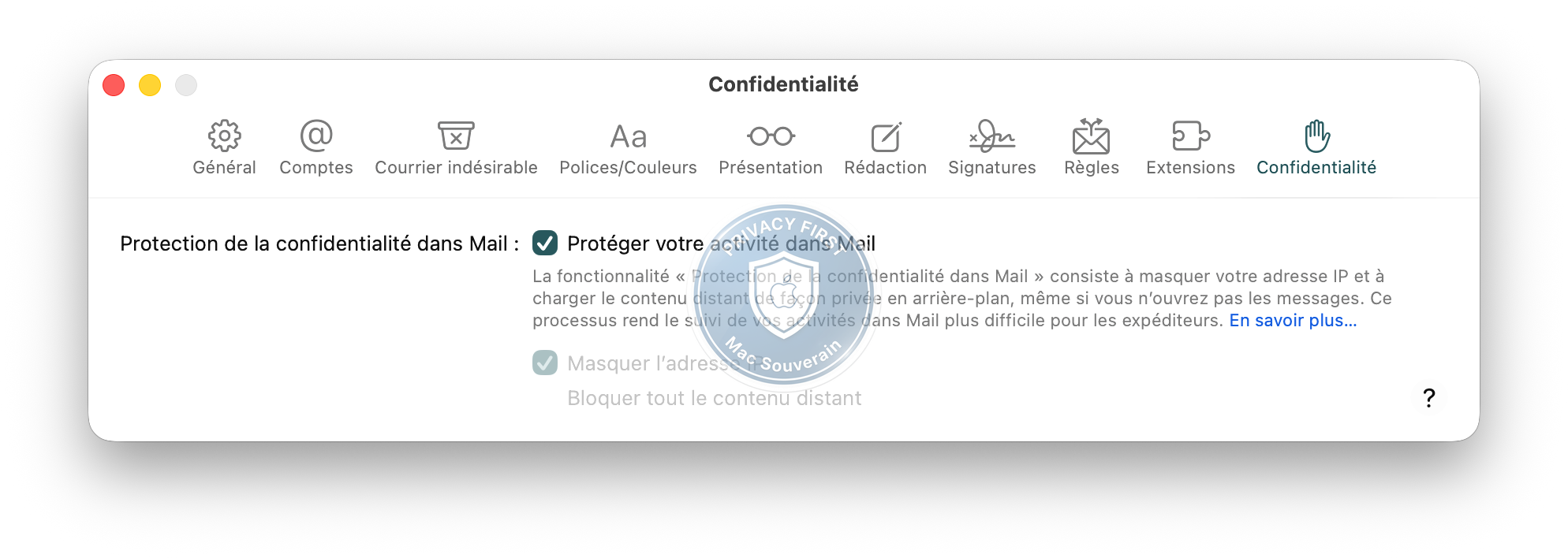
On Proton Mail: active by default, nothing to do. On Proton Mail + Bridge + Apple Mail: the protection operates on the Proton server before even reaching Apple Mail. Still enable the Apple Mail setting above, redundancy is a good practice.
Step 2: Reduce HTML/CSS surface
An email HTML is a web page. And a web page has an execution engine with measurable characteristics that can identify you without cookies and without JavaScript, purely through CSS and HTML.
Media queries can load different resources based on your dark mode, screen size, resolution. Advanced techniques can extract content via CSS alone. Unicode homoglyphs can make phishing URLs visually identical to the original.
Apple Mail no longer offers a global “plain text” toggle on macOS Ventura+. Protection comes from two approaches:
Option 1, block remote content (already done in Step 1): with “Block all remote content” enabled, CSS rendering becomes inert. No external resources load.
Option 2, switch to plain text on a specific email:
- Open the email in question
- Menu Presentation > Message > Alternative plain text
- The email reverts to plain text, no CSS executes
What you should see: emails displayed without rich formatting when remote content is blocked. Plain text option available on a case-by-case basis.
With Proton Mail (web or desktop app), you can enable plain text composition by default for all emails (Settings > Appearance > Compose in plain text). Image and attachment blocking are active by default. What you manually configure on Apple Mail is already set on Proton.
Step 3: Attachments, the habits that matter
Attachments are the most documented malware vector of the past decade. Office VBA macros, PDFs with embedded JavaScript (Adobe Reader executes it by default), TNEF files (winmail.dat) from Outlook.
On older macOS versions, Apple Mail offered an “Open secure attachments automatically” option in Mail > Preferences > General. Apple removed it starting with macOS Sequoia: attachments no longer open automatically. The fact that Apple removed the user’s choice speaks volumes about the risk level it represented.
The setting is set. What’s left is your habits:
- Before opening an attachment: press Space (Quick Look) directly from the email. The file displays in read-only without executing.
- For PDFs: use Preview (Preview) instead of Adobe Reader, much smaller attack surface.
- For.docx /.xlsx from unknown sources: Quick Look first, not Office. Never enable macros in a received document, even from a known source (a compromised account sends credible macros).
- A.app,.dmg,.pkg, or.command file received by email? Immediate deletion. No legitimate sender sends an executable by email.
Step 4: Update the mail client without delay
Zero-days on mail clients exist. CVE-2023-23397 on Outlook (CVSS 9.8): a malicious email triggered NTLM authentication towards an attacker’s server without any user interaction. Just receiving the email was enough. Exploited actively by APT28 before the patch.
Apple Mail has a less extensive history than Outlook, but not nonexistent. CVE-2020-9922: Apple Mail could send emails in plaintext even with S/MIME enabled under certain conditions.
Path: System Preferences > General > Software Updates > Automatically install system data files and security updates
Enable everything, including “Install system data files and security updates”. Never delay a macOS update that includes a Mail patch.
What you should see: all automatic update options checked.
If you’re using Proton Bridge: open Bridge > menu bar icon > Check for updates. Bridge has its own update cycle independent of macOS.
Step 5: Learn to verify a suspicious email (SPF/DKIM/DMARC)
Email was designed in the 70s without any authentication mechanism. Anyone can send an email with the From: field they want. Three control mechanisms have been added:
- SPF, Sender Policy Framework, verifies that the sending server is authorized for that domain
- DKIM, DomainKeys Identified Mail, cryptographically signs the email to verify it hasn’t been modified in transit
- DMARC, Domain-based Message Authentication, Reporting & Conformance, ties SPF and DKIM together and defines what to do in case of failure
On Apple Mail:
- Open the suspicious email
- Menu View > Message > Long headers (or
Cmd+Shift+H) - Search for the
Authentication-Results:line - Read the three values:
spf=pass/dkim=pass/dmarc=pass. Afailornoneon DMARC is a high alert signal
What you should see: complete headers with authentication results.
spf=pass dkim=pass dmarc=pass: authenticated email, legitimate sender. All good.
dmarc=fail: the sender doesn’t match the declared domain. Likely phishing. High alert.
dkim=fail: the email was modified in transit or came from an unauthorized server. High alert.
spf=fail alone: less conclusive, SPF configs can be imperfect. Medium alert.
All at none: the domain hasn’t configured any authentication. Maximum caution.
Simple alternative: copy the full headers and paste them on mxtoolbox.com/EmailHeaders.aspx, result readable in 10 seconds.
Important: Apple Mail cannot automatically reject an email that fails. It displays the authentication results in the headers, but filtering happens on the server side, by your email provider. That’s where the choice of provider makes a difference:
- iCloud Mail: applies DMARC, but Apple is less transparent about the strictness level. No advanced server-side filters.
- Gmail: applies DMARC, but may deliver to spam instead of rejecting. Powerful filters, but Google reads everything in the process.
- Proton Mail: applies the sender domain’s DMARC policy on the server side. A
dmarc=failwith arejectpolicy means the email never reaches your inbox. Plus, Proton offers Sieve filters: a scripting language for server-side rules that lets you automatically sort, move, reject, or tag emails based on the sender, subject, headers, etc. Much more powerful than Apple Mail’s rules.
To read soon: Configure Proton Bridge with Apple Mail on Mac
Habit to remember: urgent request + dmarc=fail = phone call before any action, no exceptions.
Step 6: Configure the optimal combination (Proton Mail + Bridge + Apple Mail)
If you want maximum protection on a Mac, the Proton Mail + Bridge + Apple Mail combination stacks three independent layers:
- Proton Mail: can’t read your emails (end-to-end encryption, keys on your device), filters pixel spies and remote resources on the server before even transmitting them to you
- Proton Bridge: decrypts locally on your Mac, doesn’t transmit anything on the network
- Apple Mail: doesn’t execute JavaScript, blocks remote content (if configured as above)
None of these three layers executes active code contained in an email. It’s structurally better than any webmail.
Bridge is available starting with the Proton Mail Plus plan (from €3.99/month on an annual subscription). The free Proton Mail plan doesn’t give access to Bridge.
To read soon: Configure Proton Bridge with Apple Mail on Mac
Pixel tracking: what changes with the CNIL’s April 14, 2026 recommendation
On April 14, 2026, the CNIL adopted its recommendation on email tracking pixels, final after the public consultation of June 2025. It’s not a law or regulation, just a recommendation. But it’s the doctrine that the CNIL relies on to control you and those who write to you. And when the regulator publishes its reading grid, the audits that follow use it.
A tracking pixel, in three lines
A tracking pixel is a 1x1 pixel image, transparent, hosted on a remote server. The sender slips it into the HTML body of their email, invisible to the eye. When your mail client displays the message, it loads the image. This simple load sends an HTTP request to the server, which logs your IP, mail client, timestamp, and a unique identifier linked to your email address.
Result: the sender knows you opened, when, where approximately, what OS, how many times. You haven’t done anything special, you’ve just read. Multiplied by all the newsletters, business B2B emails, commercial notifications you receive, it builds a detailed profile of your attention.
What the CNIL now regulates
The legal basis is Article 82 of the Data Protection Act, which governs cookies and trackers. And the European Data Protection Board’s guidelines 2/2023, which explicitly include email pixels in the category of trackers. The CNIL’s April 14, 2026 recommendation applies this grid to the specific case of pixels in emails.
Principle retained by the CNIL: a tracking pixel is a tracker. It reads and writes information on your terminal (your mail client, your phone, your Mac). Therefore, by default, it falls under the prior consent requirement, like an advertising cookie.
One exception to consent: measuring individual deliverability linked to a service you’ve requested. In other words, for transactional emails, order confirmation, security alert, password reset, account activation, the sender can verify if the email reached you without asking for your consent. It’s seen as a technical component of the service you requested.
Everything else requires explicit consent. Content personalization based on your behavior, marketing audience measurement, targeted advertising, commercial segmentation, fine analytics. If your sender uses the pixel for anything other than verifying that the email arrived, they must ask. Explicitly, at the standard GDPR consent level, not a buried banner at the bottom of a page.
One exception to consent: measuring individual deliverability linked to a service you’ve requested. In other words, for transactional emails, order confirmation, security alert, password reset, account activation, the sender can verify if the email reached you without asking for your consent. It’s seen as a technical component of the service you requested.
Everything else requires explicit consent. Content personalization based on your behavior, marketing audience measurement, targeted advertising, commercial segmentation, fine analytics. If your sender uses the pixel for anything other than verifying that the email arrived, they must ask. Explicitly, at the standard GDPR consent level, not a buried banner at the bottom of a page.
The timeline and what comes next
The CNIL gives three months to comply. In other words: mid-July 2026. After that, audits start. The recommendation isn’t binding in the strict sense, but it’s enforceable in inspection. An audited actor can’t plead ignorance of the doctrine: it’s public, dated, detailed.
And the CNIL has announced inspections. The first ones will likely target big B2C senders, commercial newsletters, e-commerce, media with massive tracking. But the grid applies to everyone: freelancers, SMEs, associations. If you send a newsletter with a Mailchimp pixel measuring opens for marketing purposes without collected consent, you’re off the mark.
What this changes for you who reads your emails on Mac
Nothing to do here. The settings for Step 1, “Protect Mail activity” and “Block all remote content” in Apple Mail, were already the best defense possible before the recommendation. They remain so. The difference: what was presented as “good privacy practice” by geeks is now the regulator’s position. You’re no longer paranoid, you’re aligned with the CNIL.
Proton Mail filters pixel spies by default, on the server side, before the email even reaches your inbox. This option isn’t a gadget: it’s exactly what the CNIL’s recommendation requires as the minimum standard for respecting the reader. Here too, the tool was ahead of the norm, the norm has caught up with the tool.
The only real change on the user side: you can consider that any commercial email that tracks you without having asked for your consent is now in breach. That doesn’t give you much directly, but it gives leverage to advocacy groups, the CNIL itself, and European competitors to the marketing automation giants. The power dynamic has shifted.
And if you’re on the sending side
If you send emails in a professional capacity, association, SME, freelance, independent with a newsletter, the recommendation concerns you directly. Three habits:
- Your transactional emails (confirmation, alert, reset) can keep a delivery tracking pixel without consent, as long as it serves that purpose and nothing else.
- Your marketing emails, newsletters, campaigns must pass through explicit consent for tracking, separate from the simple opt-in to the newsletter. Reading and accepting to be measured are two separate acts.
- Your emailing tools (Mailchimp, Brevo, Sendinblue, Substack) must let you disable the pixel by default or condition it on consent. If your tool doesn’t offer that, you’ll have to change before mid-July.
It’s not the end of emailing. It’s the end of blind emailing, the end of “I open, therefore I’m measured”. For a site like MacSouverain that has recommended since the start the tools that respect the reader, it’s a silent victory.
If it doesn’t work
Problem: emails are unreadable after blocking remote content
Probable cause: the email doesn’t contain a text version, only HTML with images.
Solution: click “Load remote content” at the top of the specific email. The global setting remains active for all other emails.
Problem: long headers don’t appear in the menu
Probable cause: macOS variant. On some Sequoia/Tahoe versions, the path may differ.
Solution: try View > Message > Custom headers, then check the desired fields.
Problem: a colleague sends winmail.dat files
Probable cause: they’re using Outlook in TNEF mode.
Solution: ask them to send in HTML or plain text. If it’s recurrent, don’t open with non-maintained third-party tools. Quick Look often displays the content.
For the impatient
This article secures your mail client against the six main attack vectors: pixel spies, CSS fingerprinting, malicious attachments, zero-days client, email spoofing, and active code in emails. New since April 14, 2026: the CNIL’s recommendation on pixel tracking makes blocking pixels enforceable in inspection starting mid-July 2026. Your Apple Mail and Proton Mail settings below were already compliant, they remain so.
Concretely, the settings:
Mail Privacy
- Mail > Preferences > Privacy > Protect Mail activity = Enabled
- … > Block all remote content = Enabled
Attachments & updates
- Mail > Preferences > General > Open secure attachments automatically = Disabled
- System Preferences > General > Software Updates > Automatically install system data files and security updates = Everything enabled
Verify a suspicious email
- View > Message > Long headers (Cmd+Shift+H) → search for
Authentication-Results
Maximum protection
- Proton Mail + Bridge + Apple Mail (three independent layers, zero execution of active code)
Some technical terms? Check the glossary.