Stop living as an administrator on your Mac
Your first Mac account is an administrator. Move your daily life to a standard account, keep a separate admin, without losing data or locking yourself out.

The day you switched on your Mac for the first time, the setup assistant asked for a name and a password. It created your account and, without asking, made it an administrator.
You’ve lived in it ever since. You read your mail, you install apps found on some forum, you paste commands copied from a website, all with the keys to the whole building in your pocket.
The advice is as old as multi-user systems, and almost nobody follows it. A standard account to live in, a separate administrator account to change the system. A dodgy install launched from the standard account then runs into a question it can’t answer, the password of another account.
By the end of this tutorial, your everyday account will be standard, with all your data, and a dedicated admin account will hold the keys to the system. Allow a little under half an hour, restarts included.
Before you start
The order of operations is the whole point of this tutorial. We don’t turn the current admin into a standard account and then build another admin next to it, we do the opposite.
Why this way round
Your current account holds everything, your files, your iCloud session, your settings, your apps, your saved passwords. Creating a new standard account and moving into it means a weekend of copy and paste and forgotten settings. Creating a new, empty admin, then taking the administrator rights away from your usual account, moves nothing. You log back in the next day, everything is where you left it, only your powers have changed.
What you need
- An up-to-date Mac. The screenshots come from macOS 27, the screenshots show the French interface, the labels here are the English ones from System Settings.
- A new, strong password for the admin account, different from your usual account’s. Put it in your password manager, it’s the one that will open the system for you from now on.
- A recent backup. We don’t touch your data, but we do touch the accounts, and a fresh Time Machine backup costs nothing.
The trap to avoid
The only real way to botch this tutorial is to end up without a single working administrator. macOS partly protects you from that, it refuses to remove the rights of the Mac’s last administrator. It won’t stop you, however, from demoting your account while the new admin has a password you wrote down wrong. Hence one simple rule, test the new admin before touching the old one.
The switch to a standard account, step by step
Six steps for the switch, then three checks to make sure the step holds.
Step 1, open the user settings
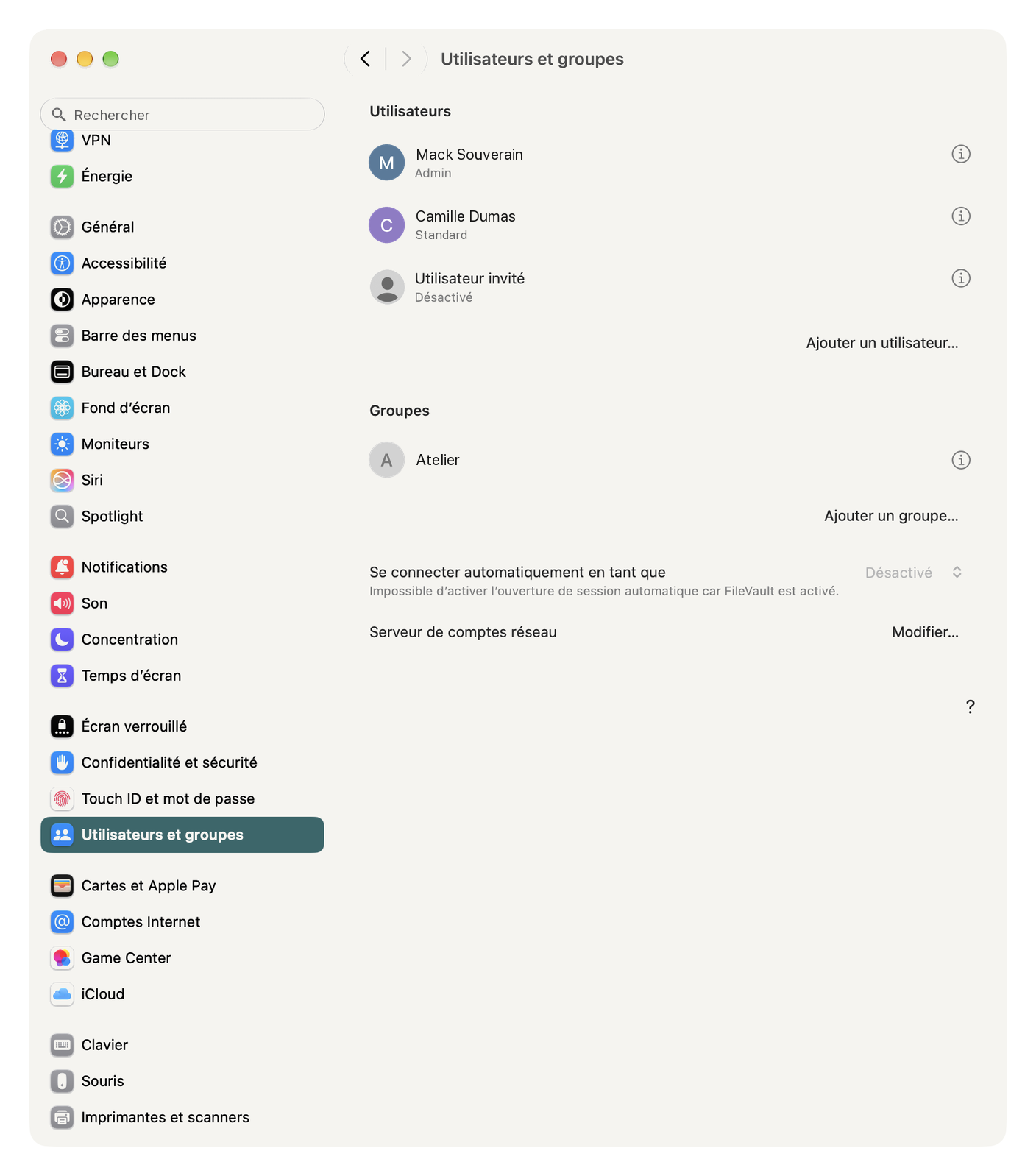
Path, Apple menu > System Settings > Users & Groups.
You see your account, marked Admin, and possibly the guest user. This is where it all happens.
Step 2, create the new administrator
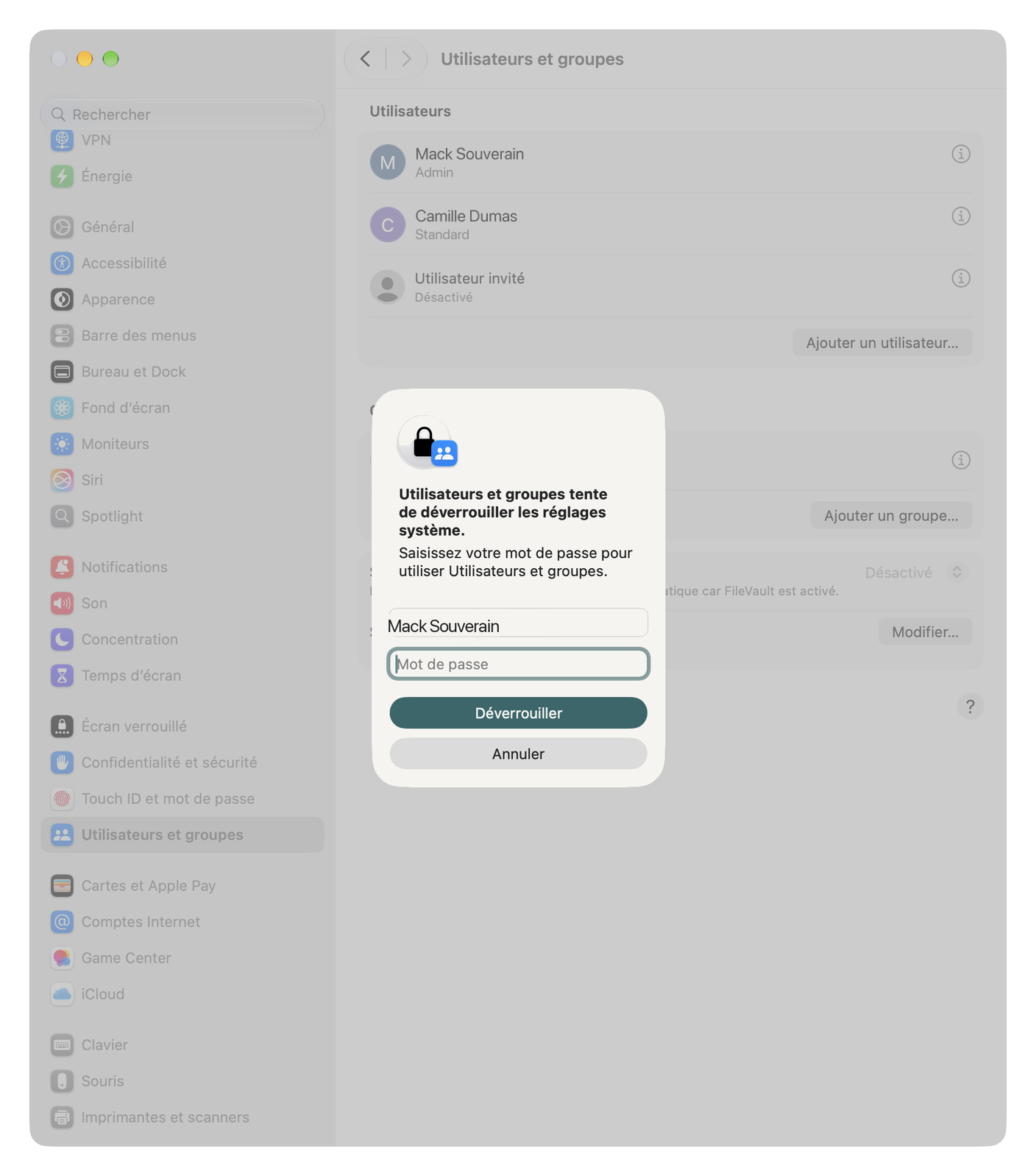
Click “Add User…”. macOS asks for your password, that’s normal, you’re still an admin.
In the window that opens, set “New User” to Administrator. Give it a name that says what it does, “Admin” as the full name and admin as the account name, for example. Enter the strong password you prepared earlier, verify it, then click “Create User”.
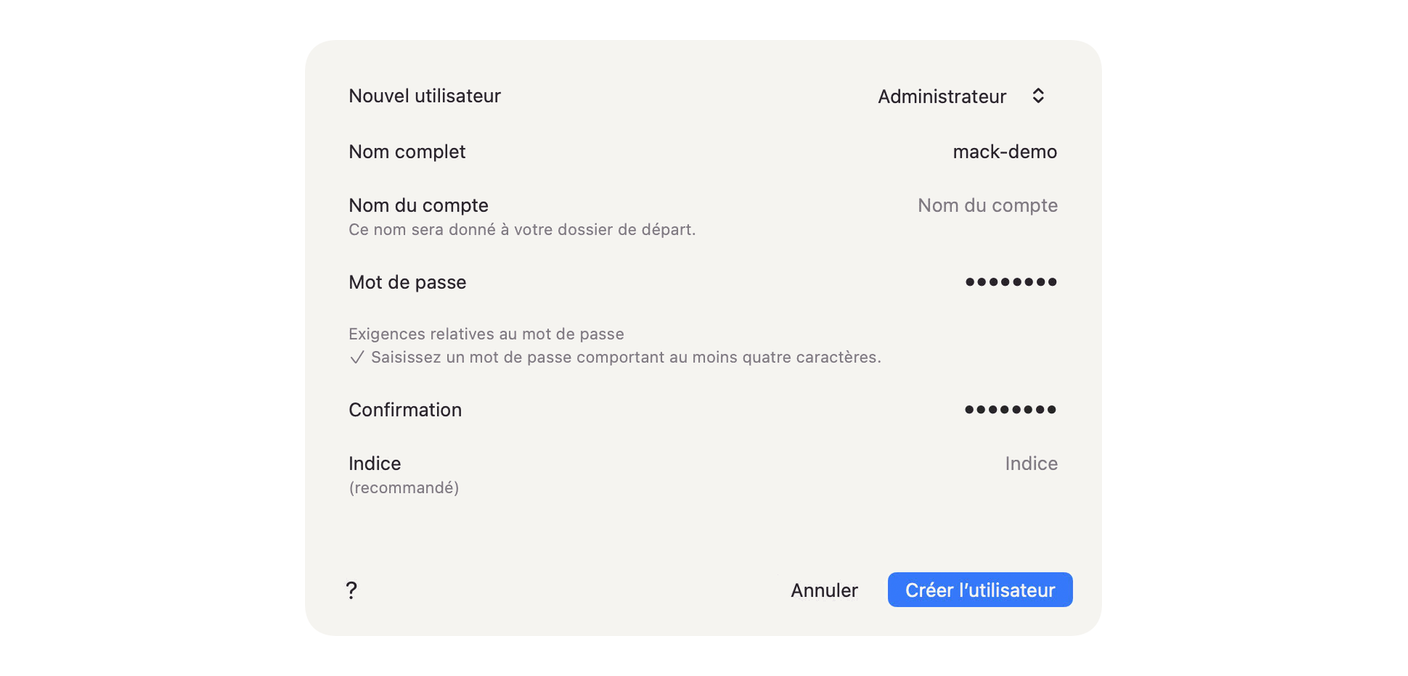
This account doesn’t need iCloud, or mail, or anything else. Don’t sign it in to any Apple Account. It’s a set of keys you take out of the drawer, not a place where you live.
What you should see, Admin shows up in the list, marked Admin.
Step 3, test the new admin, for real
Apple menu > Log Out. At the login screen, pick Admin and enter its password. The first login runs a short setup assistant, let it go through.
If your disk is encrypted with FileVault, go one step further. Shut the Mac down completely, switch it back on, and check that the Admin account appears on the very first screen, the one that unlocks the disk. Normally it’s there by default. If it isn’t, stop right there. Log back in to your usual account, still an administrator, open Terminal and type sudo fdesetup add -usertoadd admin. It first asks for your password (for sudo), then for the name and password of an account already allowed to unlock the disk, yours, then for Admin’s password. Then run the cold test again.
Until that login has worked, you go no further.
Step 4, take the rights away from your usual account
Still logged in as Admin, go back to System Settings > Users & Groups. Click the Info button to the right of your usual account, then turn off “Allow this user to administer this computer”. Confirm.
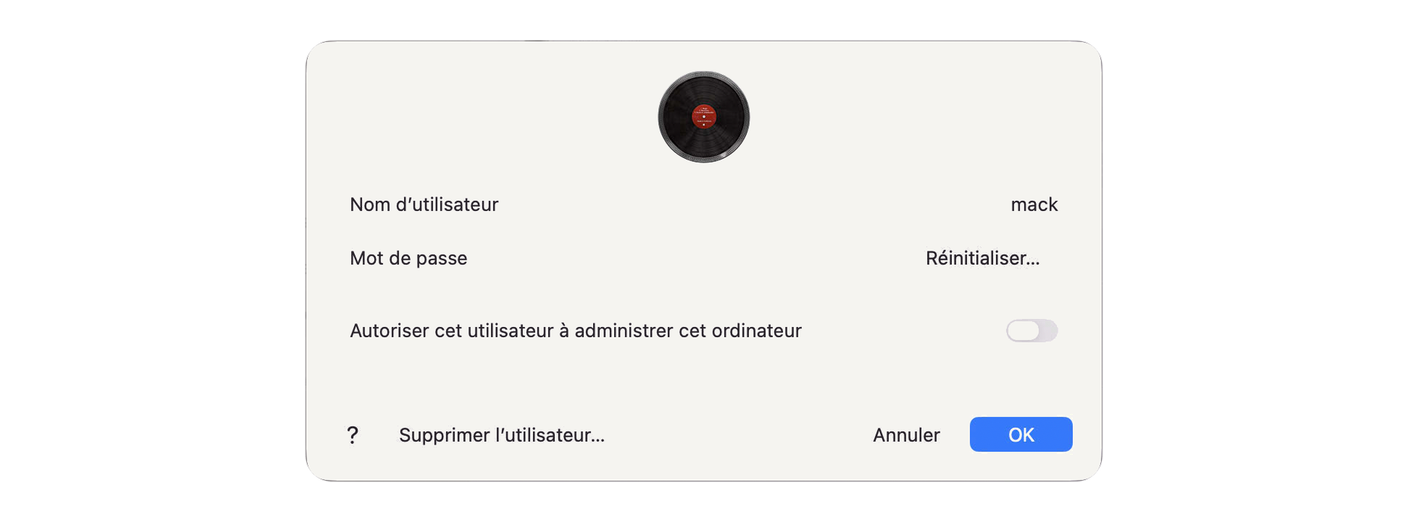
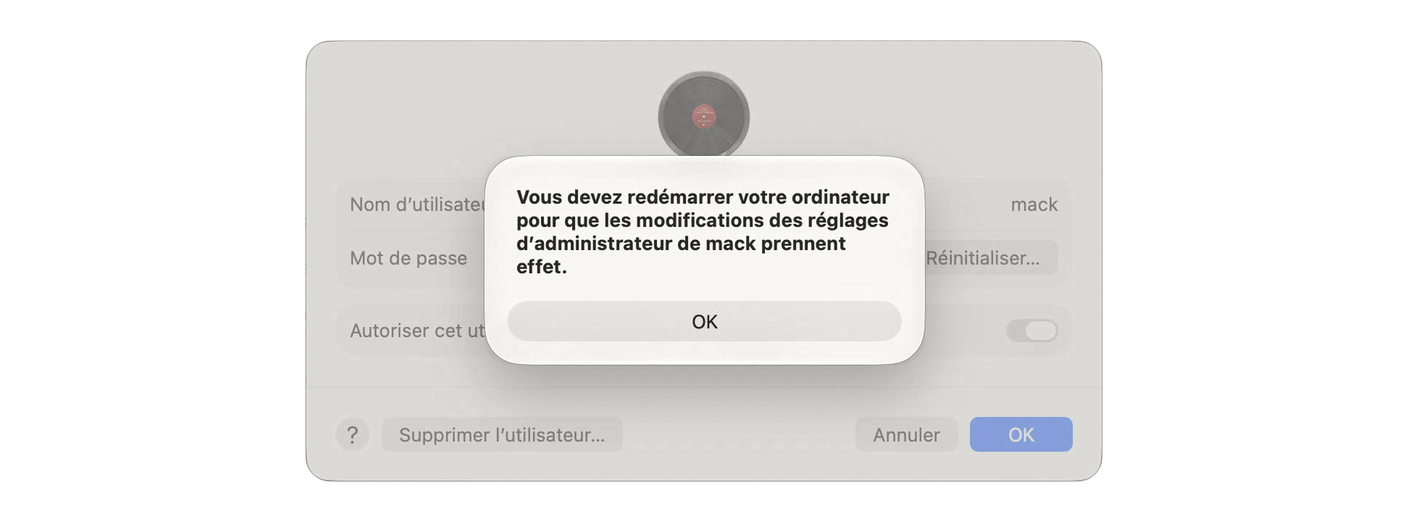
Why from the Admin account? Because macOS won’t let an administrator take away their own rights, and the message is blunt, “You cannot remove yourself from administrators.” The loop makes sense, it takes another admin to demote you.
What you should see, macOS warns you that you “must restart the computer” for your changes to your account’s “administrator settings to take effect”.
Step 5, restart and come home
Restart so the change of rights takes effect, then log in to your usual account.
Everything is there. Your files, your apps, your iCloud session, your oh-so-smart wallpaper. In Users & Groups, the label under your name has changed to Standard.
Step 6, keep the admin within easy reach
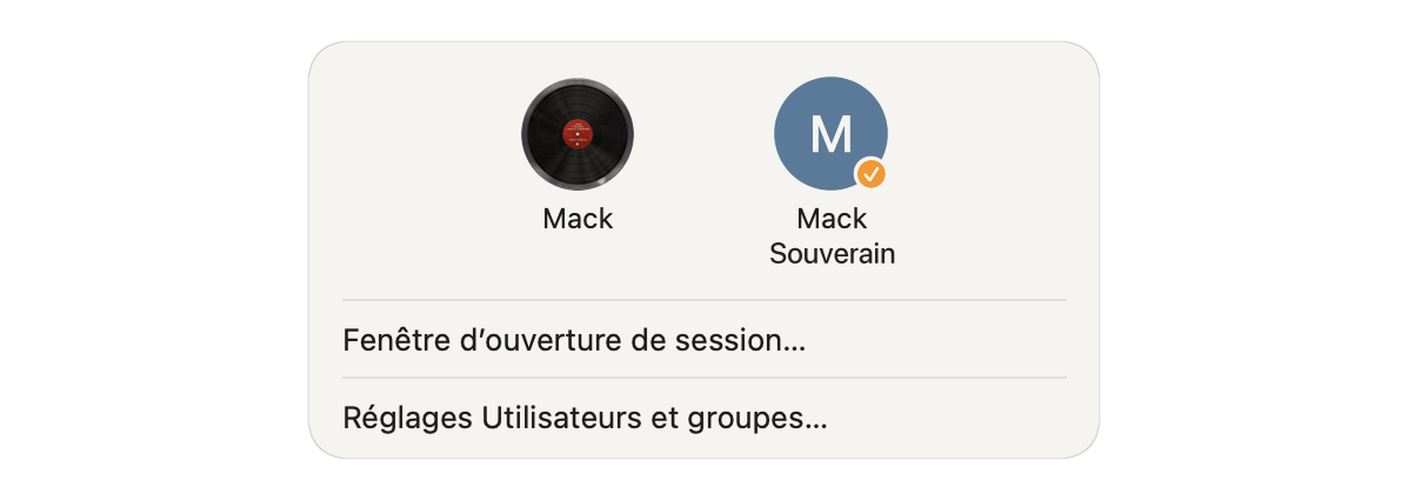
When the system wants an administrator, it asks you for Admin’s name and password, without leaving your session. For the rare times you really want to switch over, keep the shortcut handy.
Path, System Settings > Menu Bar > Fast User Switching > Show in Menu Bar.
Check that the step holds
The dragged app test
Download VLC from its official site, open the disk image and drag the app into the Applications folder. From your standard account, the Finder stops and asks for an administrator’s name and password.
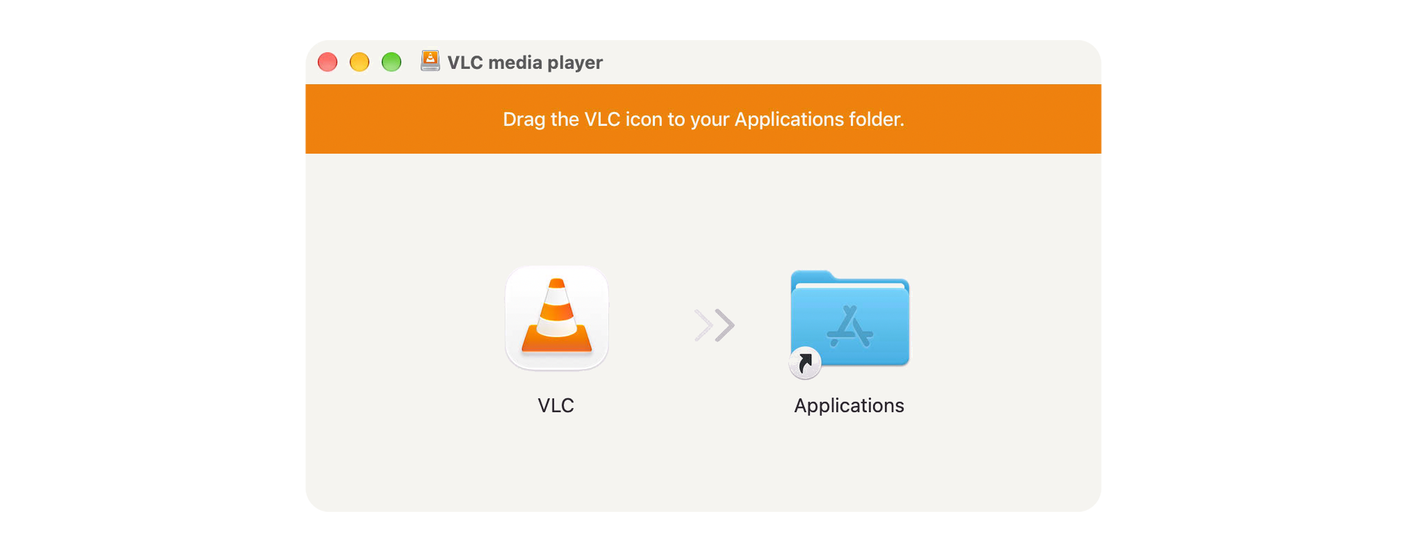
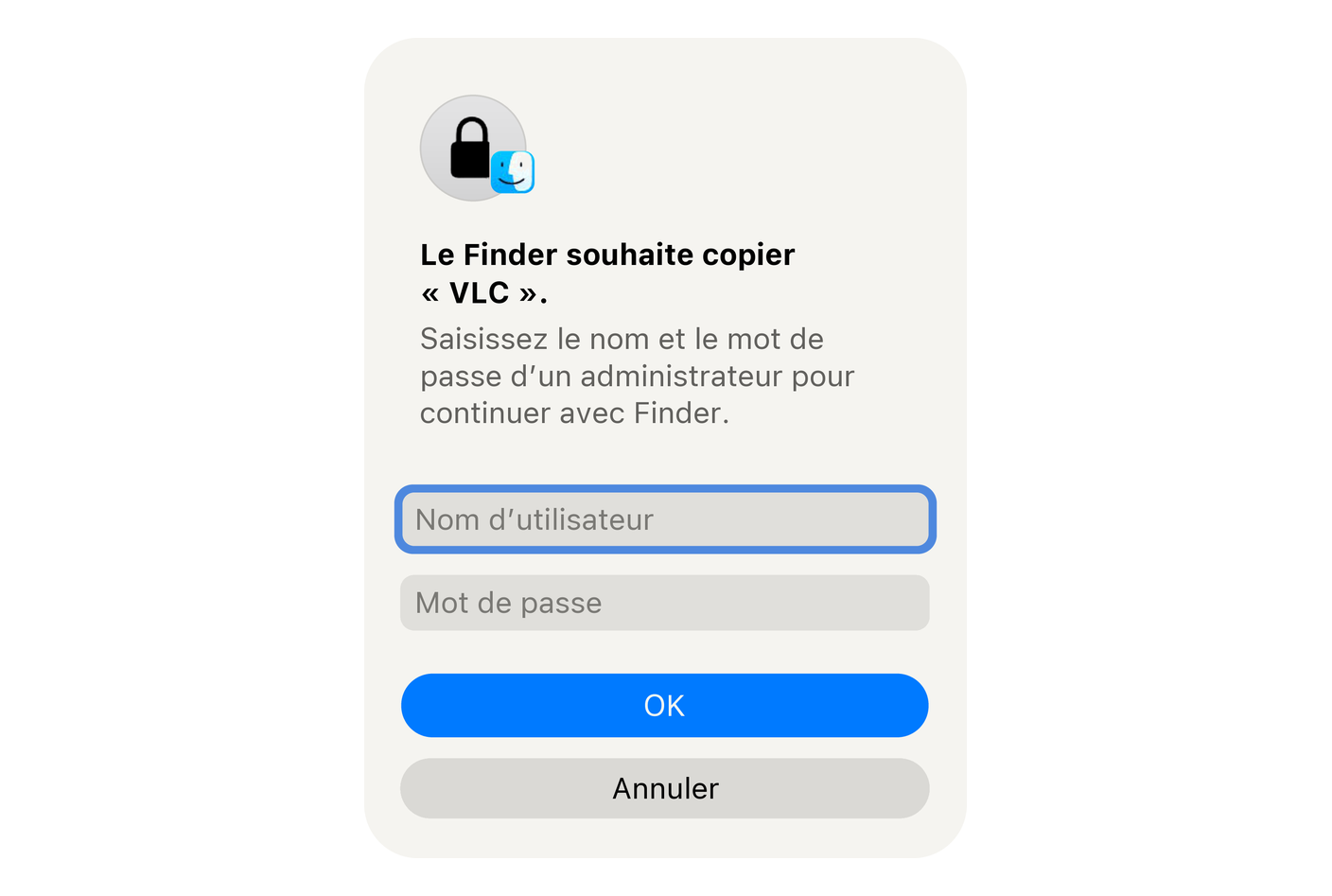
What you should see, an authentication request, not a silent copy. That’s exactly the step you just built. The system’s Applications folder belongs to the administrators, and your account no longer writes there without their say-so. For VLC, you type the Admin credentials and the copy goes through. For an installer you didn’t launch yourself, you’ve just bought a second to think.
One nuance, so I’m not lying to you. A standard account can install apps, Apple says so in black and white. Not in the Mac’s Applications folder, the one you just tested, but in an Applications folder of its own, inside its home folder.
There, no password, and the app runs. Only, it runs with your rights as a plain user. It can touch your files, but not the system, nor the other accounts, and it can’t grant itself Admin rights without Admin’s password. That’s the whole difference.
FileVault, both accounts must be able to unlock the disk
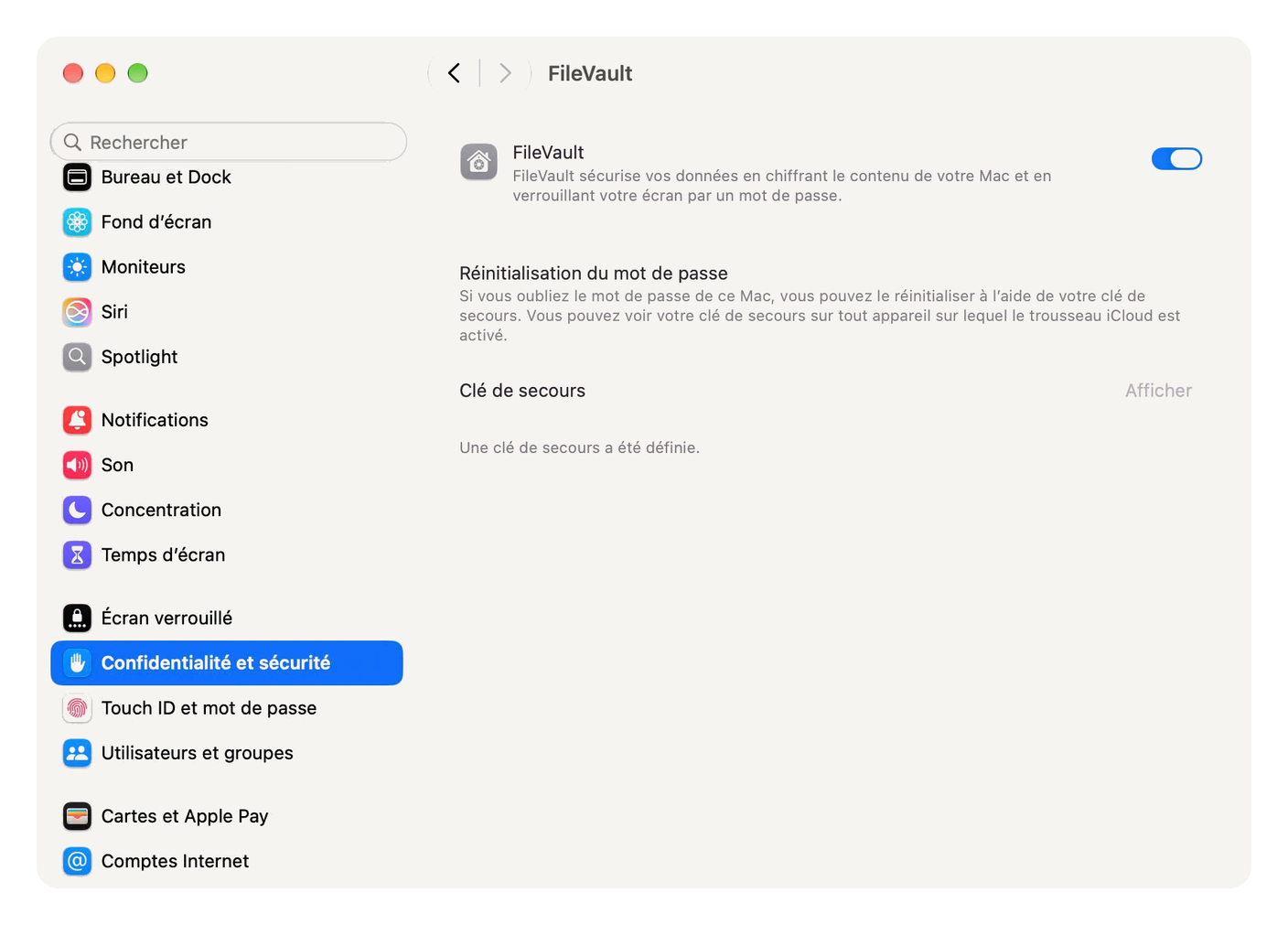
Path, System Settings > Privacy & Security > FileVault.
Check that the FileVault switch is on. In macOS 27, this pane no longer lists the accounts allowed to unlock the disk, just the switch and the recovery key. The real check is the one you did in step 3, in front of the first startup screen. If FileVault isn’t on, now’s the time, the privacy tutorial walks you through turning it on and the recovery key.
Updates, without the admin password
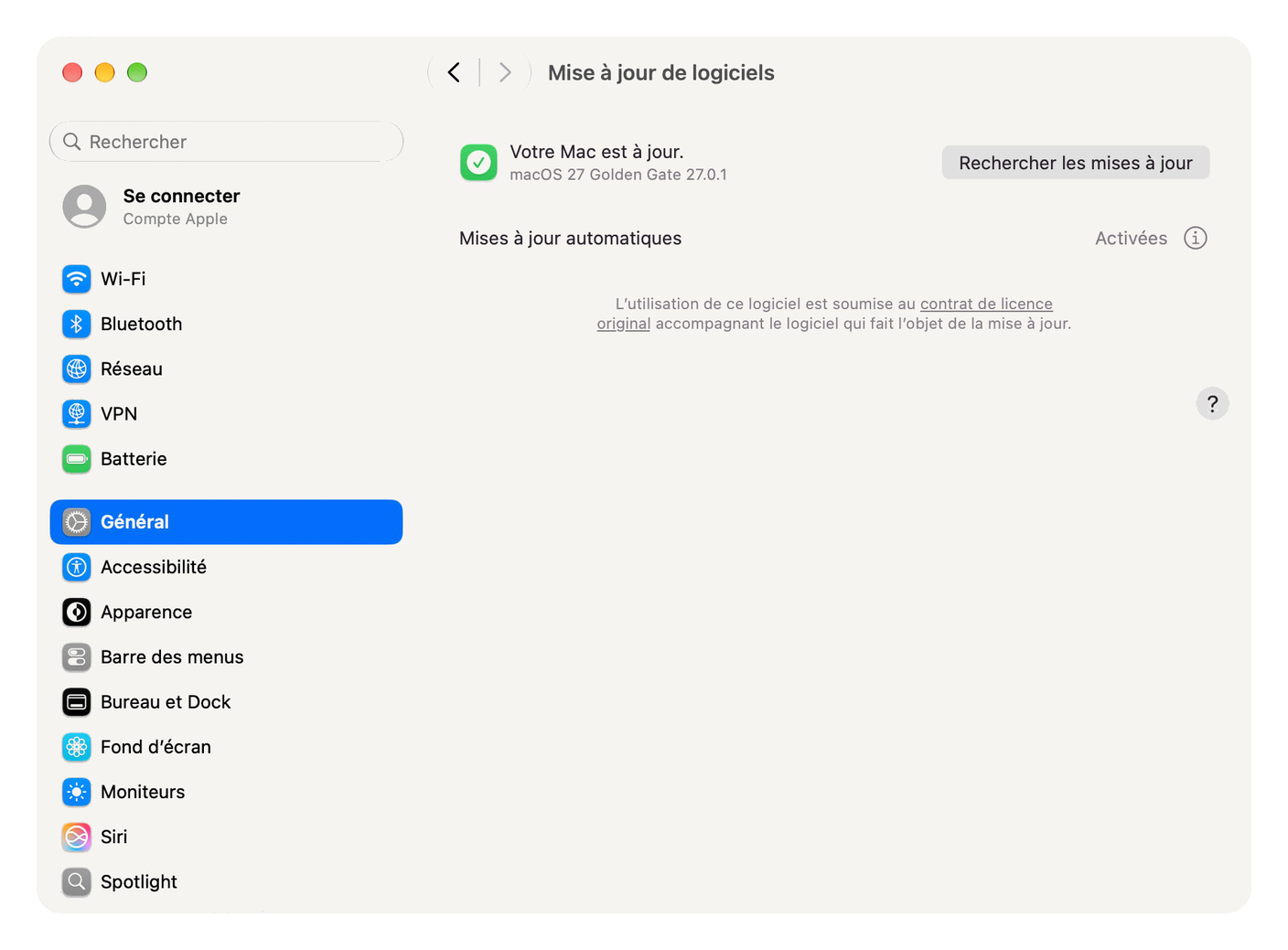
One last suspicion to clear up, the one that makes everybody back off. Can a standard account still update its Mac? According to Apple’s deployment guide, yes, authorizing an update requires being an owner of the volume, not being an administrator. On an Apple silicon Mac, your account, created at first startup, is one.
Path, System Settings > General > Software Update.
What it changes, and what it doesn’t
A program launched from your standard account runs with your rights, and your rights no longer reach the system. It can’t write to the folders reserved for administrators, install a system component, create an account or touch other users’ settings. The sudo command, in Terminal, is off limits too. For all of that, it needs Admin’s name and password, which it doesn’t have. The system itself is sealed by Apple, not even an administrator can modify it. What you’re protecting here is everything around it, the Applications folder, the programs launched at startup for the whole Mac, the shared settings.
It’s one more step, not a suit of armor.
The standard account doesn’t protect what belongs to you. Your documents, your photos, what your browser keeps in memory, the passwords saved in your session, all of that lives under your name, and a program running under your name can try to get at it. The data thieves that target the Mac don’t need administrator rights to pack their bags, what they’re after is precisely what’s yours. So the standard account replaces neither a good filter at the door, nor a check on what goes out, nor your own vigilance when someone asks you to paste a command into Terminal.
The step only holds if you don’t climb over it by reflex. A window asking for an administrator password at the wrong moment, while opening a document or right after a download, gets a no. Some malware knows how to imitate those windows. If you type the Admin credentials every time you’re asked, all you’ve done is add a password to your daily routine.
What you gain is still real. Anything that wanted to dig in deep, hook into the system or touch the other accounts now has to go through a door you keep shut. And the evening you install a dodgy app while thinking about something else, it’s your session that takes the hit, not the system. Your files, on the other hand, remain exposed, as we said above.
If it doesn’t work
The “Allow this user to administer this computer” switch refuses to turn off
You’re logged in to the account you’re trying to demote. macOS won’t let an administrator take away their own rights. Log out, log in as Admin, and redo step 4.
The Admin account doesn’t appear at startup
FileVault hasn’t allowed it to unlock the disk. From an administrator session, type sudo fdesetup add -usertoadd admin in Terminal, give the password of an account already allowed, then Admin’s, and shut down then switch back on to check.
An app asks for the admin password at every update
It’s installed in the system’s Applications folder and updates itself, so it needs to write where you no longer write. You type the Admin credentials.
You need an admin command in Terminal
Open an Admin session through Fast User Switching. Or, in your Terminal, type su admin, enter its password, then run your commands with sudo, which will ask for that password again. Type exit as soon as you’re done, and keep this shortcut for moments when you know exactly what you’re running.
For the impatient
What this article does. It switches your everyday account to standard without moving a thing, and hands the keys to the system to a dedicated Admin account, created and tested before you touch anything else.
Concretely, the steps to follow.
- System Settings > Users & Groups > Add User…, “New User” set to Administrator, no Apple Account.
- Log out and log in as Admin. With FileVault, shut down then switch back on, Admin must appear on the very first screen.
- From Admin, Users & Groups, Info button of your usual account, “Allow this user to administer this computer” off, then restart.
- System Settings > Menu Bar > Fast User Switching, Show in Menu Bar.
- System Settings > Privacy & Security > FileVault, on.
- Drag an app into Applications from your account, the Finder must ask for the Admin credentials.
Read also, Antivirus alone no longer protects your Mac
Read also, Privacy on macOS, protect your digital life effectively
Technical terms? Check the glossary.
Sources
Apple
- Change Users & Groups settings on Mac, Mac User Guide, the Administrator, Standard and Sharing Only account types.
- Secure token, bootstrap token and volume ownership, Apple Platform Deployment guide, standard users who own the volume authorizing updates.
- Manage FileVault, Apple Platform Deployment guide, secure token and unlocking the disk.
Independent analysis
- Standard users can upgrade macOS, The Eclectic Light Company, updates and major upgrades from a standard account since macOS 12.3.
Software mentioned
- VLC, VideoLAN’s official site.