Your SSH key behind Touch ID, step by step
Episode 2. Secretive, an SSH key inside the Secure Enclave, Touch ID on every connection, port 22 closed and your Tailscale policy, command by command.
Series · episode 2 of 2Your SSH Keys vs AI Agents Contents
- 1 An AI agent can wreck your fleet. The Touch ID lock.
- 2 Your SSH key behind Touch ID, step by stepyou are here
In episode 1, we laid out the why. An AI agent runs with your privileges, inherits your SSH keys and can hop from server to server while you’re looking elsewhere. The fix came down to two locks, a private network that makes port 22 disappear and a key locked inside your Mac’s chip, which signs nothing without your finger.
I promised every command. Here they are, in the order I typed them, pitfalls included, along with three claims from episode 1 that have aged and that I correct where they matter.
By the end, every SSH connection to your servers will require your finger on Touch ID, and port 22 will no longer exist as far as the internet is concerned. You need a Mac with Touch ID, a Linux server and a Tailscale tailnet. Count a good hour for the first server, tests included, much less for the next ones.
Before you start
An SSH tutorial that starts with the commands is a tutorial that ends with a ticket to your host’s support desk. We prepare the ground first.
What you need
- An Apple Silicon Mac, or an Intel MacBook with a T2 chip, with Touch ID set up. On an Apple Silicon iMac or Mac mini, the Magic Keyboard with Touch ID does the job, and it doesn’t work with Intel Macs.
- macOS 15 or later for Secretive 4, the current version. On macOS 14, stay on Secretive 3.0.4.
- A Linux server you already reach over SSH with a classic key. The server commands target Ubuntu, with its ufw firewall.
- Tailscale on the Mac and on the server, in the same tailnet. The free plan is enough for personal use, and Secretive is free and open source.
If your tailnet doesn’t exist yet, the Tailscale tutorial sets it up in an evening. And if your server is barely out of the box, the hardened VPS foundation covers its setup, basic SSH included.
A word on versions, since this tutorial’s credibility rests on the fact that I built it for real. My setup ran on Secretive 3.0.4. Version 4 came out on September 21, and what I say about it comes from its release notes and its code, not yet from my own fingers. I flag it every time it matters.
What this changes, and what it doesn’t
After this tutorial, your interactive SSH connections go through a key nobody can copy, you included, and every signature asks for your finger. Your automated jobs, on the other hand, can’t lay a finger on anything. Backups, syncs, overnight scripts keep a separate channel, I come back to it in step 3, and that channel stays open all the way through the setup.
What doesn’t change is your vigilance. Touch ID proves you’re there, not that you understood what you’re signing.
The safety net, before the first command
We’re about to touch the only door that gives you access to your servers. One mistake, and you’re standing on the doormat with the keys inside. Three precautions, non-negotiable.
- Keep an SSH session open to each server for the whole procedure. Only close it after you’ve succeeded with a new connection using the new key.
- Check your host’s console access now, the KVM or the serial console in its panel. It’s your service entrance if the network and SSH both give out at once.
- Prepare a classic backup key, which will live off the Mac.
ssh-keygen -t ed25519 -a 100 -C "secours-hors-ligne" -f ./secours_ed25519Give it a strong passphrase. Keep the secours_ed25519.pub file handy for step 5, then store both files on a medium you only plug in after a disaster, and delete them from the Mac. If your Mac dies, this is the key that opens the door again, from another device on your tailnet. And if the tailnet itself goes down, the host’s console takes over.
The setup, step by step
Nine steps, one goal each. The order isn’t a detail. Steps 5 and 6 don’t swap, you drop the key in place before shutting off passwords. Step 7 doesn’t move either, you reconnect over the tailnet before turning on the firewall.
Step 1, install Secretive
Two paths. The shortest goes through Homebrew.
brew install --cask secretiveThe most verifiable goes through the Secretive releases page. You download Secretive.zip, compare its hash with the one in the build log linked to the release, then check the signature once the app sits in Applications.
shasum -a 256 Secretive.zip
codesign -dv --verbose=4 /Applications/Secretive.app
spctl -a -vv /Applications/Secretive.app
What you should see, a Developer ID Application authority in Max Goedjen’s name on the codesign side, and the mention accepted, source=Notarized Developer ID on the spctl side.
The screenshots in this tutorial come from version 3.0.4, the one running on my Macs. Homebrew will install version 4 for you, or 3.0.4 on its own if you’re on macOS 14. The labels are the same, and whatever version 4 adds is flagged along the way. They also show the French interface, the English labels are given in the text.
Launch the app and follow its setup assistant. It installs SecretAgent, the small SSH agent that runs in the background and starts with your session.
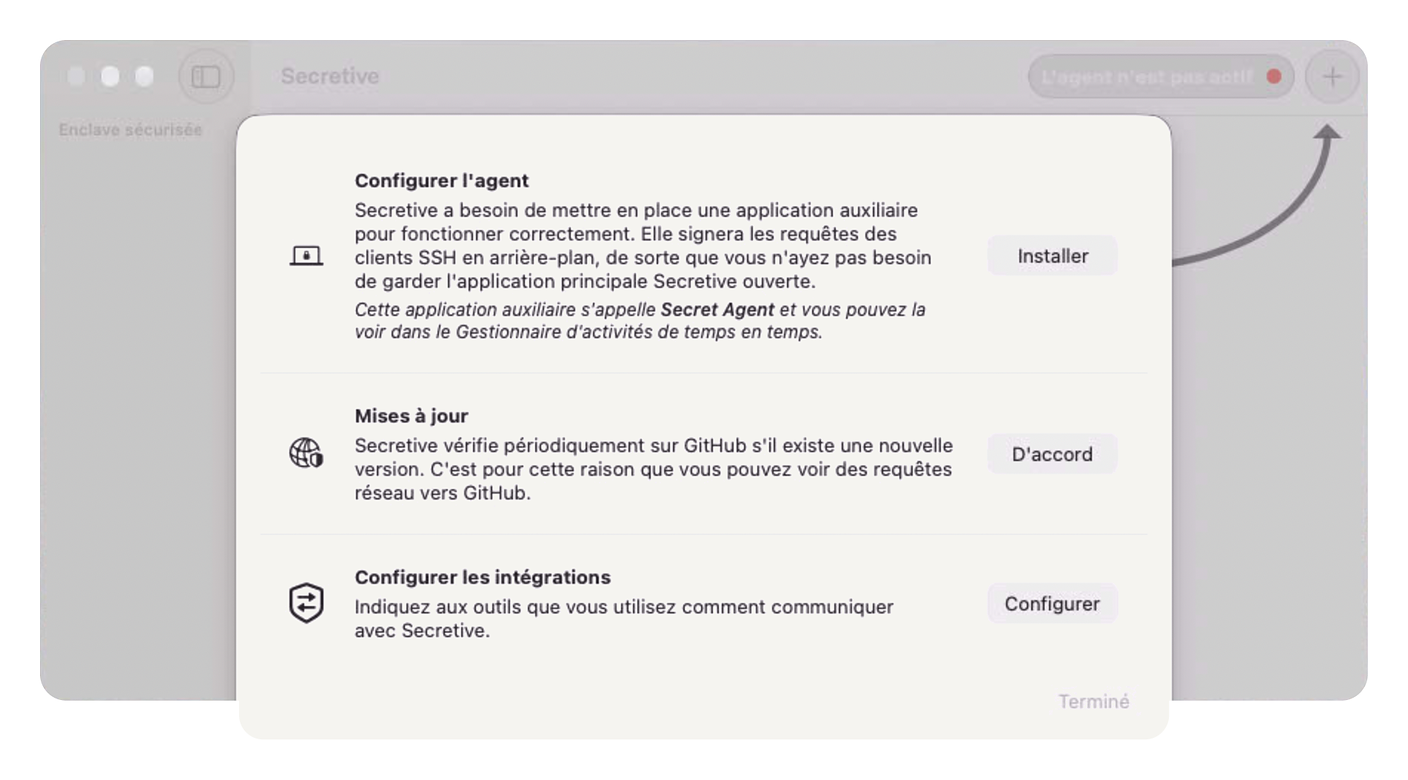
Click “Install” next to “Setup Agent”. The button turns green, and the badge at the top of the window switches to “Agent is Running”. The other two rows of the assistant can wait, Secretive already works. Close the assistant with “Done”. Don’t click “Configure Integrations”, it offers to plug Secretive into all your connections, and step 3 explains why we do without it.
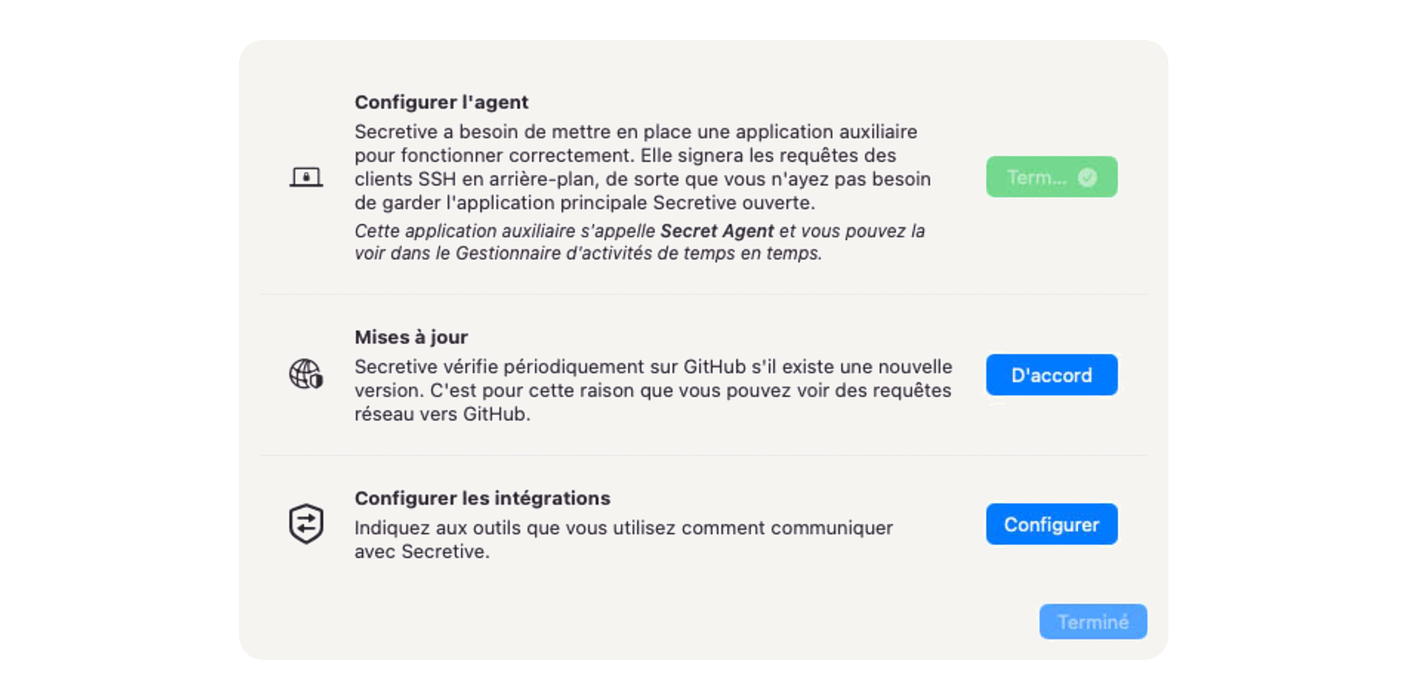
For the outbound traffic obsessives, Secretive’s only network request checks for updates on GitHub, roughly once a day. No setting in version 4 turns it off, your outbound firewall makes the call if you’d rather watch for releases by hand.
💡 Apple has opened a native path since macOS 26 Tahoe, with the
sc_authtool and the system’sssh-keychain.dyliblibrary. I couldn’t get it to work reliably with the SSH agent in my tests, Secretive remains the path I recommend.
Step 2, create the key in the Secure Enclave
In Secretive, the ”+” button. By default the window only shows the name and two protection levels. The key type and the level that really matters are hidden behind “Advanced”, bottom left. Click it.
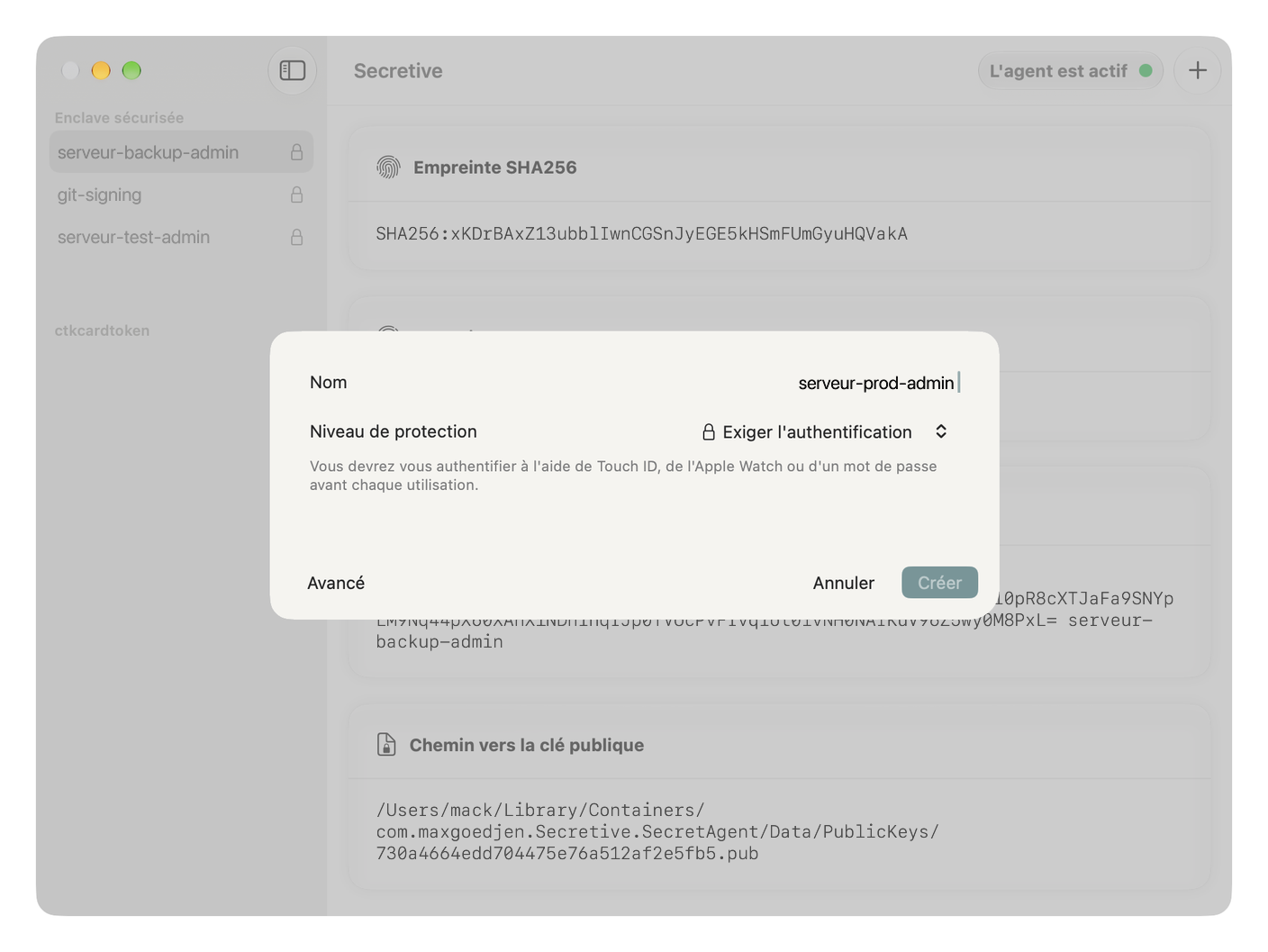
The name. One key per server, named after it, serveur-prod-admin for example. That’s the “never a master key” rule from episode 1, applied, and it’s the name the Touch ID window will show you.
The type, ECDSA P-256. First correction. I wrote that the Secure Enclave could only do P-256. That’s no longer accurate. Since macOS 26, the chip also signs with ML-DSA, a post-quantum algorithm, and Secretive has offered it since version 3. Except the public key it produces carries a type that no standard OpenSSH server accepts today. The chip speaks post-quantum, your server can’t listen yet. Stick with P-256.
The “Key Attribution” field, also shown in advanced mode, can stay empty, the default comment is enough.
The authentication level. The most important setting in this tutorial, and the least visible.
- “Notify”, avoid it, the key signs without asking anything while your Mac is unlocked, and a notification tells you after the fact.
- “Require Authentication” accepts Touch ID, but also your Apple Watch or the Mac’s password.
- “Current Biometrics”, only visible in advanced mode, only accepts Touch ID, with the fingerprints enrolled at the moment of creation.
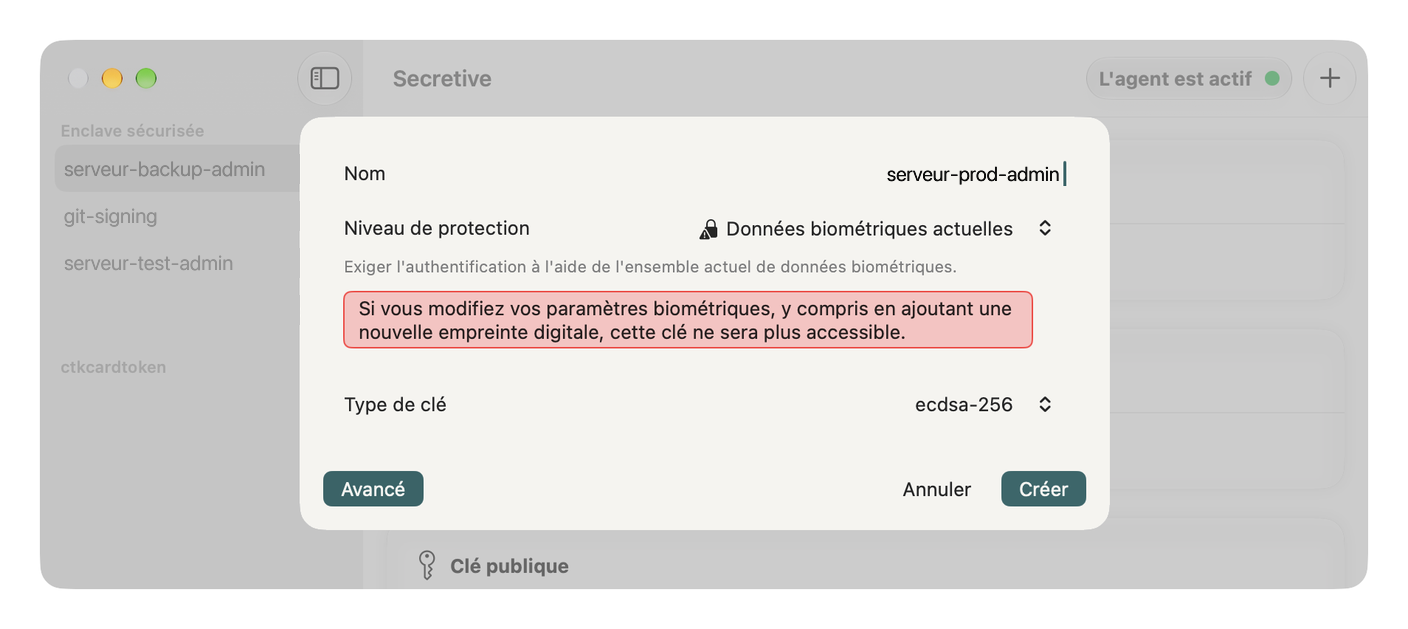
Pick the third for your admin keys. I first ran with the second, and noticed that an Apple Watch on my wrist could approve in place of my finger. Comfortable, and precisely what we were trying to prevent, since the lock relies on a conscious gesture.
There is a downside. Adding a fingerprint in Settings invalidates the key, and you then have to create a new one and redeploy its public key.
This authentication level is what delivers the “Touch ID every time” from episode 1, on one condition. When Secretive offers to leave the key unlocked for a while, decline with “Do Not Unlock”. During that window, an agent would sign without you.
Next, grab the public key. The app’s copy button is enough, store it in a dedicated file.
mkdir -p ~/.ssh/secretive
pbpaste > ~/.ssh/secretive/serveur-prod-admin.pub
ssh-keygen -lf ~/.ssh/secretive/serveur-prod-admin.pub
The last line displays the key’s SHA256 fingerprint. Write it down, it will help you recognize the right line on the server side. Also check that Secretive’s agent actually sees your key.
SSH_AUTH_SOCK=~/Library/Containers/com.maxgoedjen.Secretive.SecretAgent/Data/socket.ssh ssh-add -LWhat you should see, a line starting with ecdsa-sha2-nistp256 and ending with your key’s name, followed by @secretive. and your Mac’s name.
Step 3, wire up the SSH agent, server by server
The app suggests plugging Secretive into all your connections, with a global rule in ~/.ssh/config. Don’t. Your backups and syncs would go through it too, and a script has no finger. You’d reap a string of failures, or worse, Touch ID windows popping up out of nowhere that you’d end up approving out of sheer weariness.
The right setup is host by host, one block per protected server in ~/.ssh/config.
Host serveur-prod
    HostName serveur-prod.exemple.ts.net
    User admin
    IdentityAgent ~/Library/Containers/com.maxgoedjen.Secretive.SecretAgent/Data/socket.ssh
    IdentityFile ~/.ssh/secretive/serveur-prod-admin.pub
    IdentitiesOnly yes
    ForwardAgent no
    ControlMaster no
    ControlPath none
Put these blocks at the top of the file, before any Host *. Like sshd, ssh keeps the first value it encounters, and a Host * placed above, with its multiplexing or agent forwarding, would silently win.
Every line has its reason.
HostNametargets the server’s name in your tailnet, never a hard-coded IP.IdentityAgentsends this connection, and only this one, to Secretive. The rest of your SSH life stays put.IdentityFileandIdentitiesOnlydesignate a single key, by its public key. Without them, ssh offers every Secretive key one after another, and the server cuts you off after six refusals before reaching the right one.ForwardAgent noforbids lending your key to the remote server, the pivot vector described in episode 1. To go through an intermediate machine, useProxyJump, the signature stays on your Mac at every hop. With the policy from step 8, your servers no longer reach each other over the tailnet, so a jump from one tagged server to another will be refused there.ControlMaster noandControlPath noneturn off multiplexing, a sneaky trap.
Multiplexing keeps a master connection open to speed up the next ones. Handy, except any program running with your privileges can then reopen a session through that pipe without a new signature, so without Touch ID. Your lock becomes a saloon door.
The trade-off shows up at deployment time. A script that opens ten connections asks for your finger ten times, and as episode 1 put it, after five fingers laid down on autopilot you no longer read anything, and it’s on the sixth that an intruder slips in theirs. The fix is to bundle the work into a single session, a script pushed then run on the spot, rather than ten commands in a row.
For your automated jobs, a service account without root privileges, sauvegarde in the examples that follow, with its own on-disk key, restricted on the server side to a single command through the command= option in authorized_keys. It can only do one thing, and it never goes through Secretive. That’s the compromise that makes the setup livable day to day, and steps 6 and 9 explicitly preserve it.
To check what ssh will actually apply to this host, ask it for its computed configuration.
ssh -G serveur-prod | grep -Ei '^(identityagent|identitiesonly|forwardagent|controlmaster) 'What you should see, the path to Secretive’s socket, identitiesonly yes, forwardagent no and controlmaster false.
Step 4, turn off Tailscale SSH
I put this one before any test, because forgetting it cancels out all the others. Tailscale SSH, the in-house feature already called out in episode 1, doesn’t just replace authentication. Enabled on a server, it intercepts all traffic arriving on port 22 through the tailnet. sshd never sees the connection go by, and your authorized_keys file is never read.
I learned this the hard way. On a server whose sshd was locked down, root login forbidden included, root connections went through with neither key nor password, because Tailscale SSH was answering in its place. All the hardening was decorative.
If Tailscale SSH is how you get into this server today, keep the host’s console open before cutting it. Then, on each server, one command.
sudo tailscale set --ssh=falseThe check happens from your Mac, forbidding any key and any session reuse at connection time.
ssh -o PubkeyAuthentication=no -o ControlPath=none [email protected]What you should see, a password prompt or a refusal. If a session opens without asking you anything, or if you get sent to a Tailscale login page, Tailscale SSH is still answering, check that the command was actually run on that particular server. The ssh section of your Tailscale policy will be emptied in step 8, to close this door on the console side too.
Step 5, put the key on the server
The private key doesn’t exist as a file, so ssh-copy-id has to be forced to make do with the public key, using the -f option.
ssh-copy-id -f -i ~/.ssh/secretive/serveur-prod-admin.pub [email protected]I use the full name rather than the serveur-prod alias, so that this particular connection still goes through your old key and not through Secretive. Add the backup public key the same way, along with the Secure Enclave key of each of your other Macs. Each Mac has its own, none of them can be copied.
You can then harden the added line, on the server side, in ~/.ssh/authorized_keys, by prefixing it with three options.
from="100.64.0.0/10,fd7a:115c:a1e0::/48",restrict,pty ecdsa-sha2-nistp256 AAAA... [email protected]from= only accepts the key from Tailscale’s address ranges. restrict turns off agent, port and display forwarding. pty brings back the interactive terminal, which restrict had cut along the way. On a server you use as a jump host for ProxyJump, also add port-forwarding after restrict, otherwise the hop fails.
Then the test, from a new terminal window, your backup session still open.
ssh serveur-prodWhat you should see, a Touch ID window where SecretAgent asks to sign a request from Terminal with the serveur-prod-admin key. You lay your finger, you’re connected. Try again and click “Deny”. The signature is refused, and ssh will offer you a password if your sshd still accepts them, which the next step takes care of. The clean Permission denied (publickey) refusal comes later.

Second correction. I wrote that Secretive couldn’t know which server you’re connecting to. According to its version 4 release notes, it now tells you a bit more. After a signature, its notification shows the targeted user and server, and so does its pending requests panel.
Two conditions, the server must appear in clear text in your known_hosts, and both sides must run OpenSSH 8.9 or later. One caveat if your Mac is set to French, the translated notification doesn’t show the server name yet. And I couldn’t check it myself, since I’m still on version 3.0.4, which doesn’t do this. The Touch ID window, for its part, still only shows the requesting app and the key name.
Step 6, lock down sshd
If you built your server with the VPS foundation, half of this is already in place. The extra lines close the side entrances. On the server side, create a separate file, /etc/ssh/sshd_config.d/01-durcissement.conf.
PasswordAuthentication no
KbdInteractiveAuthentication no
PubkeyAuthentication yes
AuthenticationMethods publickey
PermitRootLogin no
AllowAgentForwarding no
AllowUsers admin sauvegarde
Add your automated jobs’ account to AllowUsers, otherwise your overnight backups bang on the door without anyone telling you.
Why that 01 in the name? For most settings, sshd keeps the first value it encounters, and Ubuntu reads these files in alphabetical order, before the main configuration. A cloud image often drops a 50-cloud-init.conf that turns passwords back on. Getting in ahead of it settles the matter.
If you really must log in as root directly, replace PermitRootLogin no with prohibit-password and add root to AllowUsers. The Secure Enclave key will then be enough, but so will any old key forgotten in root’s authorized_keys, without the slightest finger.
Check before reloading, never after.
sudo sshd -t
sudo sshd -T | grep -Ei 'passwordauth|kbdinteractive|permitrootlogin|authenticationmethods|allowagentforwarding'
sudo systemctl reload ssh
The first line checks the syntax. The second displays the values actually applied, the only ones that count. The third reloads the service, which is called ssh on Ubuntu and sshd on other distributions.
What you should see, no output for sshd -t, then passwordauthentication no, kbdinteractiveauthentication no, permitrootlogin no, authenticationmethods publickey and allowagentforwarding no for sshd -T.
Step 7, close public port 22
If you’re coming from the VPS foundation, your firewall is already in this state, skip straight to the test from outside. For everyone else, the order of the commands is vital. First connect to the server by its tailnet name, not by its public IP, otherwise ufw enable will saw off the branch you’re sitting on.
sudo ufw allow in on tailscale0 to any port 22 proto tcp
sudo ufw default deny incoming
sudo ufw default allow outgoing
sudo ufw enable
sudo ufw status numbered
If other services run on this server, keep their ufw rules on tailscale0, we only touch port 22. If an old rule still opens 22 to the world, 22/tcp or OpenSSH in the list, remove it by its name and reread the final state.
sudo ufw delete allow 22/tcp
sudo ufw delete allow OpenSSH
sudo ufw status verbose
The test is done from outside, with Tailscale off on the Mac and your phone’s hotspot turned on.
nc -vz -w 5 IP_PUBLIQUE_DU_SERVEUR 22What you should see, a timeout. Turn Tailscale back on, ssh serveur-prod must still go through. If your host offers a network firewall in its panel, deny inbound 22 there too. Two padlocks on the same door is rarely overkill when it leads to root.
You might be tempted to make sshd listen only on the tailnet address, with the ListenAddress directive. On recent Ubuntu, systemd opens the port instead of sshd. The directive doesn’t take effect with a simple reload, and binding sshd to the tailnet address can fail at boot if Tailscale isn’t up yet. The firewall does the job, and sudo ss -tlnp always tells you who’s listening on what.
On the Mac side, leave Remote Login turned off in System Settings > General > Sharing, that’s the default state. If one of your Macs has to accept SSH, ListenAddress is ignored there too, and restricting it to the tailnet goes through pf, the system’s packet filter, a project in its own right.
Step 8, write your Tailscale policy
Third correction. I wrote that Tailscale denies by default. That’s true of the rules, not of a brand-new tailnet. A freshly created tailnet ships with a policy that lets everyone reach everyone, on every port. Default deny only kicks in once that policy has been replaced by yours. If you’ve never touched it, your tailnet is an open-plan office with no partitions.
Before replacing anything, take stock of what already flows across your tailnet. Screen sharing and files between your Macs, your SIEM’s agents talking to their manager, a dashboard on 443, backups between machines. Every flow you want to keep needs its line in grants. Otherwise it dies the moment the policy is saved, and you find out the next day.
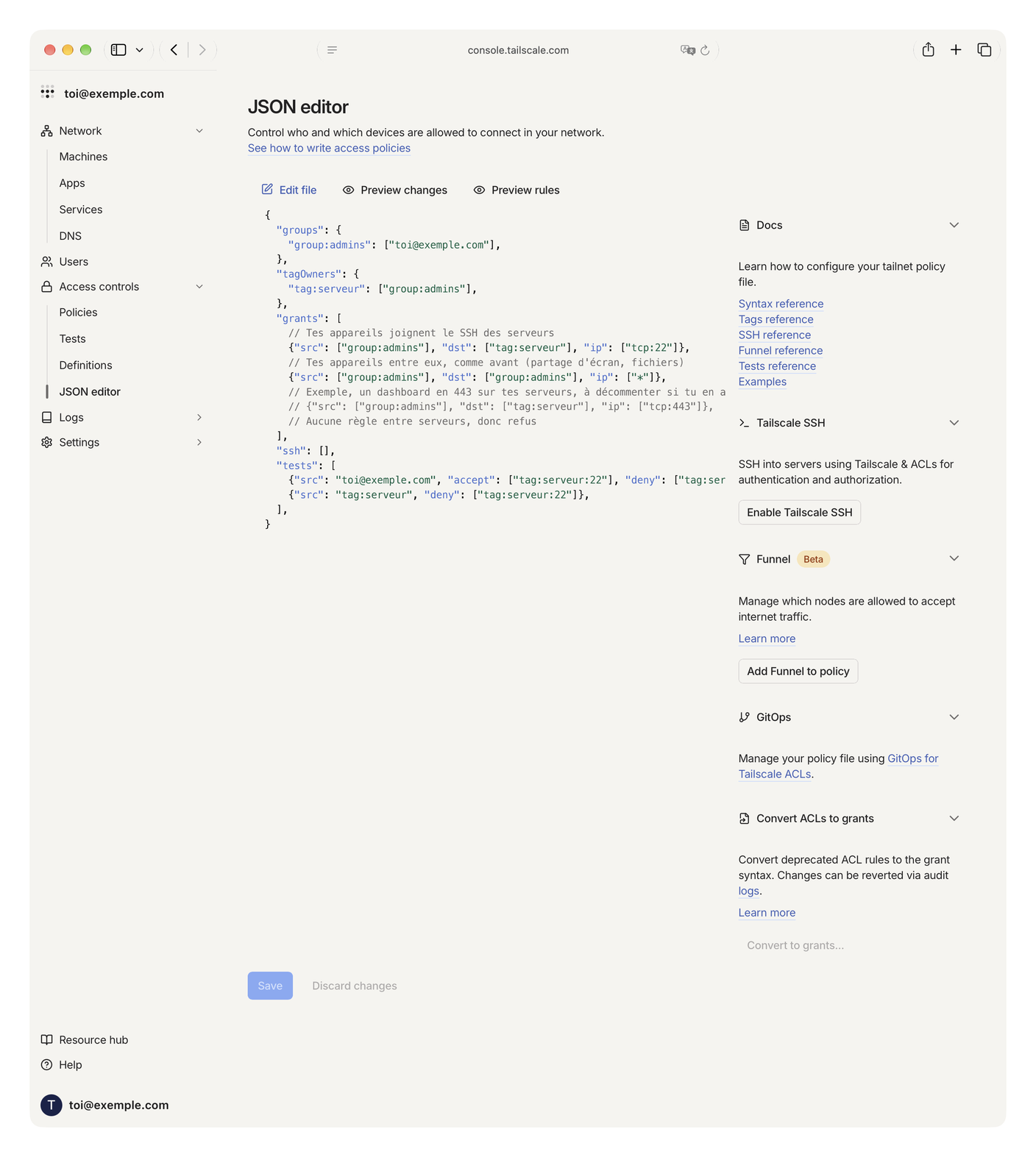
The policy is written in the Tailscale admin console, under “Access controls”, on the “JSON editor” page. Start by adding the tagOwners block from the example below, save, then tag each server. The easiest way goes through the console’s machines page, the machine’s menu, “Edit tags”. On the command line, tailscale set can’t apply a tag, the documented path reauthenticates the server.
sudo tailscale up --advertise-tags=tag:serveur --force-reauthIt displays a login link to open on your Mac, and if it asks you to repeat your other settings, it gives you the full command to rerun. Do this from the host’s console or with your backup session open, the server drops off the tailnet while it reauthenticates.
Once your servers are tagged, replace the policy with this one, adapted to your address and completed with the flows from your inventory.
{
  "groups": {
    "group:admins": ["[email protected]"],
  },
  "tagOwners": {
    "tag:serveur": ["group:admins"],
  },
  "grants": [
    // Your devices reach the servers' SSH
    {"src": ["group:admins"], "dst": ["tag:serveur"], "ip": ["tcp:22"]},
    // Your devices among themselves, as before (screen sharing, files)
    {"src": ["group:admins"], "dst": ["group:admins"], "ip": ["*"]},
    // Example, a dashboard on 443 on your servers, uncomment if you have one
    // {"src": ["group:admins"], "dst": ["tag:serveur"], "ip": ["tcp:443"]},
    // No rule between servers, so denied
  ],
  "ssh": [],
  "tests": [
    {"src": "[email protected]", "accept": ["tag:serveur:22"], "deny": ["tag:serveur:3389"]},
    {"src": "tag:serveur", "deny": ["tag:serveur:22"]},
  ],
}
Quick read. Your devices, the ones in your group, reach port 22 on the tagged servers and keep talking to each other. The servers don’t reach each other, so a compromised server no longer serves as a springboard. The ssh section is empty, Tailscale SSH no longer has any rule to lean on.
The rest of your inventory follows the same mold, one line per flow, limited to its port. If you built the series’ SIEM, your Wazuh agents reach their manager on 1514 and 1515, one line from your servers’ tag to the manager’s machine. If two servers need to talk for a backup, one line as well, and nothing broader.
The tests block is your anti-regression net. Tailscale evaluates it on every save and rejects any policy that breaks it. The day you open things too wide by mistake, it’s what stops you. Its ports are examples to adapt. Port 3389 serves here as a port nobody opens, and if a test contradicts a flow you meant to keep, it’s the test that gets fixed.
You can tag your Macs too, but a tagged device loses its link to your account and its key no longer expires by default. A lost tagged Mac gets revoked in the console, immediately. Leaving your Macs attached to your account, as here, avoids the problem.
What you should see, the policy accepted on save with no failing test, and your server shown with its tag in the machines list.
Step 9, check everything, then remove the old key
The checklist, on each server.
ssh serveur-prod, Touch ID, connected.- Touch ID cancelled, connection refused.
- The same connection launched by your AI agent, the Touch ID window shows the requesting app, your terminal if the agent runs there. That’s why the agent must announce each connection before requesting it, as stated in episode 1. A request it didn’t announce, you refuse, connection refused.
- From the internet, outside the tailnet, port 22 doesn’t answer.
- From one server to another, SSH blocked by the Tailscale policy.
ssh -o PubkeyAuthentication=no -o ControlPath=none [email protected]answersPermission denied (publickey), no password path left.- Your automated jobs, the overnight backup still goes through, with its own separate key.
- Your other tailnet flows, screen sharing, SIEM, dashboard, each one answers as before.
- The backup key, tested once from another device on your tailnet, then stored away. If the tailnet itself goes down, the host’s console takes over.
- The host’s console, tested as well.
What’s left is the move that gives everything else its meaning. As long as your old key, ~/.ssh/id_ed25519 for example, sits in a server’s authorized_keys, any program on your Mac can use it without you. The Touch ID lock becomes an armored door next to an open window.
List the authorized keys on each server, for your user and for root.
ssh-keygen -lf ~/.ssh/authorized_keys
sudo ssh-keygen -lf /root/.ssh/authorized_keys
Compare them with the one you noted in step 2, with those of your other Macs’ keys and with your backup key’s. Keep only your Macs’ Secure Enclave keys, the backup key and your automation keys restricted by command=, delete the rest. On the Mac side, empty the system agent with ssh-add -D, then move the old key off the Mac or delete it. Finally, close your backup session.
One last reflex, worth more than all the commands. A Touch ID window you didn’t trigger, you refuse. It happened to me, a surprise request came from another session of my agent, launched in the background. Refusing was the right answer, and it broke nothing. According to its release notes, Secretive 4 can also batch several identical requests under a single Touch ID. Read the label, and refuse any batch you weren’t expecting.
If it doesn’t work
The Touch ID window never shows up
Secretive sometimes loads its keys badly after a restart. Open the app, that fixes it most of the time. Otherwise, rerun the ssh-add -L command from step 2, then ssh -v serveur-prod. Verbose mode shows you which agent and which key ssh actually offers.
The server answers “Too many authentication failures”
IdentitiesOnly yes is missing from the host block, or a Host * placed above overrides it. Without it, ssh presents every Secretive key in a row and the server cuts off before reaching the right one.
The connection goes through without Touch ID
Four suspects, in this order. Tailscale SSH still active on the server (step 4). An old key still authorized (step 9). A multiplexing master connection left open (step 3). A key left unlocked in Secretive. In the vast majority of cases, it’s one of these four.
Your key stops working overnight
You added a fingerprint in Settings, or reinstalled your Mac. With “Current Biometrics”, the key is lost, and it won’t come back. Get in with your backup key or from another Mac, create a new key, redeploy its public key and remove the old line.
Your Mac runs an execution allowlist
If you filter execution with Santa in Lockdown mode, Secretive and its components must be allowed by signing ID. Version 4 adds a service, SecretAgentHostsfileReader, which reads your known_hosts file and must be allowed on top of the others.
For the impatient
What this article does. It locks your SSH admin key inside your Mac’s Secure Enclave with Secretive, requires Touch ID for every signature, takes SSH off the public internet and partitions your tailnet, without breaking your automated jobs or your other flows.
In practice, the steps to follow.
- Before anything else, a backup SSH session open, the host’s console tested, a backup ed25519 key stored off the Mac.
brew install --cask secretive, then the setup assistant.- In Secretive, one key per server, ECDSA P-256, “Current Biometrics” level, behind the “Advanced” button. “Leave Unlocked”, always no.
- In
~/.ssh/config, one block per host, before anyHost *, with Secretive’s socket asIdentityAgent, the public key asIdentityFile,IdentitiesOnly yes,ForwardAgent no,ControlMaster no. - Your automated jobs under a service account, with their own on-disk key restricted by
command=, outside Secretive. - On each server,
sudo tailscale set --ssh=false. ssh-copy-id -f -iwith each Mac’s public key and the backup one.- An
/etc/ssh/sshd_config.d/01-durcissement.confwith no password and no root,AuthenticationMethods publickey,AllowAgentForwarding no, andAllowUserswith your account and your automated jobs’ account. Thensshd -t,sshd -T, and only after that the reload. - ufw, port 22 allowed on
tailscale0only, inbound denied by default, old public rule deleted. - Tailscale policy, flow inventory first, then
tagOwners, server tagging, and finally thegrantswithtcp:22totag:serveur, one line per flow to keep, an emptysshand adaptedtests. - In
authorized_keys, only the Secure Enclave keys, the backup key and the restricted automation keys remain.ssh-add -Don the Mac.
Read also, what the Secure Enclave really changes on Apple Silicon.
Technical terms? Check the glossary.
Sources
Secretive
- Secretive on GitHub, the code and README of Max Goedjen’s app, installation, non-exportable keys, one key per Mac.
- Secretive FAQ, agent forwarding, no import or export, update network request.
- Secretive releases, release notes for version 4.0.0 of September 21, 2026 and for version 3.0.
OpenSSH
- ssh_config(5), IdentityAgent, IdentitiesOnly, IdentityFile, ForwardAgent, ControlMaster.
- sshd_config(5), AuthenticationMethods, PermitRootLogin, AllowAgentForwarding, AllowUsers.
- OpenSSH release notes, state of post-quantum support and agent restrictions.
Tailscale
- Tailscale SSH, interception of the tailnet’s port 22 and how to turn it off.
- Access policy syntax, groups, tags, grants and tests, open policy of a new tailnet.
- Grants, the recommended syntax for permissions.
- Tags, tag owners and effects on device identity.
- Secure an Ubuntu server with Tailscale and ufw, the port closing sequence.
Apple
- The Secure Enclave, Apple Platform Security guide.
- Remote Login on Mac, turning it on and restricting it per user.