Put your local AI to work, no cloud
Your local model exposes an OpenAI-compatible API, right at home. Wire it to your real tasks with Shortcuts or Python, without any SaaS ever seeing your data.

Series · episode 3 of 3Your AI, at Home Contents
- 1 Your AI can be turned off by the US, build your own
- 2 Install your first AI model locally on Mac
- 3 Put your local AI to work, no cloudyou are here
You installed your local model. You talked to it. You even cut the Wi-Fi to check it still answered, and it did. Nice demo. And ever since, your local AI lives in a chat window where you paste your text by hand, read the reply, paste it somewhere else.
In other words, you have a sovereign engine, and you use it like a notepad.
An AI stuck in its chat window gives back only half of what it can do. The other half, the one that really counts, is when it works while you do something else. Sorting a batch of emails, summarizing a folder of notes, rewriting thirty lines in one go, without you playing the copyist. And the best part: the move to get there fits in an afternoon.
Read this first: Install your first local AI model on Mac. This article picks up from there, a model already running at home.
The real problem, you have become your assistant’s assistant
Look at how you use your local model today. You open LM Studio, you type your request, you wait, you grab the text. For one question, fine. For thirty emails to sort or fifty notes to summarize, you become the conveyor belt, the slow link between the task and the machine.
That is exactly the repetitive work an AI is supposed to take off your hands. Except here, you are the one doing it in its place.
The classic reflex, when you want to automate, is to reach for a Zapier, an IFTTT, a Make. You link two services, add a pinch of AI in the middle, and it runs on its own. Handy. Except each of these tools is a cloud middleman, and the pinch of AI is yet another remote model. You wanted to automate sensitive work, your emails, your notes, your documents, and you just routed it through two foreign companies instead of one.
You set up your AI locally precisely so nothing leaves. It would be a shame to reopen the door through automation’s little window.
The good news: you need none of these services. Your local model already knows how to plug in. It is waiting for you, and no one else is listening.
The key you did not see, your model exposes a local API
Here is what no one told you when you installed LM Studio. The chat window is only one of the house’s two doors. The second is a small server running on your machine that speaks the same language as the big remote models.
An image to place it. The chat window is the shop counter, you come, you ask, you are served. The local server is the loading dock out back, the one whole pallets go through, without queuing at the counter. Same shop, same stock, but an access built for volume and for machines.
Concretely, LM Studio can start a server that listens locally, on your machine and it alone. Any program on your Mac, a script, an app, a shortcut, can then send it a request and get the answer back, without a click from you. You move from “I ask a question” to “this program asks a thousand questions while I have lunch.”
And the detail that makes all the difference is that this API is OpenAI-compatible. In plain terms: it speaks exactly the same language as the API of the big remote providers. The request format, the response structure, everything is identical. That means nearly all the tools, tutorials and snippets written to “plug in an AI” work with your local model, by changing a single thing, the address. Instead of pointing at a server on the other side of the world, you point at localhost, at home.
Your text goes to your own machine, your machine answers, nothing crosses your network card. No per-request bill. No terms of service. No third party reading along the way.
That is where your local AI stops being a toy and becomes a tool.
Turning on the server, the only setting to know
Before wiring anything, you have to open the loading dock. It is a checkbox, literally.
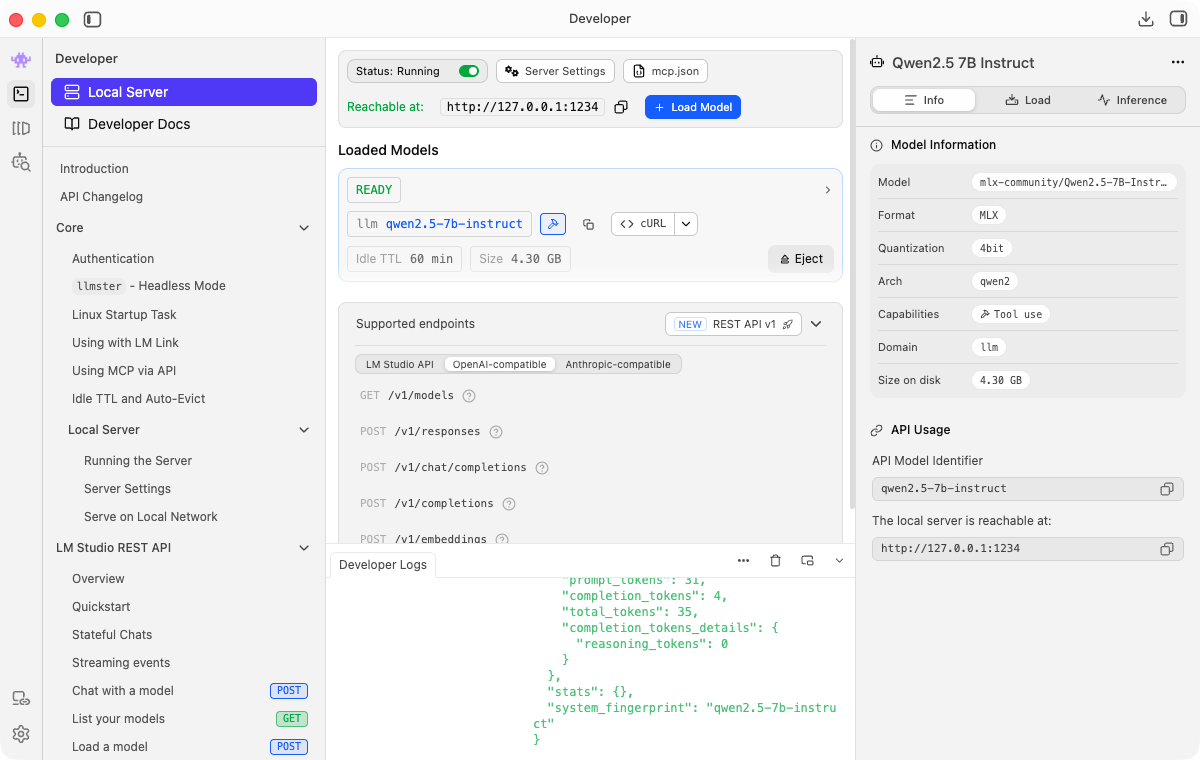
In LM Studio, go to the Developer tab, the one with the chevron icon >_, the old “Local Server” from earlier versions. Load the model you already use, the one from the previous article, then flip the server to “Start.” An address shows up, http://localhost:1234.
Remember two things from this screen, and only one really matters for your peace of mind.
The address starts with localhost, also written 127.0.0.1. It means “this machine, and nothing else.” The server is not exposed to the network, your café neighbor cannot connect to it, and neither can a web page open in your browser. That is the default behavior, and it is the right one. Do not change it to open it to 0.0.0.0 without knowing exactly why, that would be opening your loading dock onto the street.
The number at the end, the port, is just the precise door to knock on. Note it down, you will use it in two minutes.
There, the server is running. Your model is waiting for work.
Without a line of code, the Shortcuts app
If the word “script” already makes you roll your eyes, this section is for you, and it is enough to change your life.
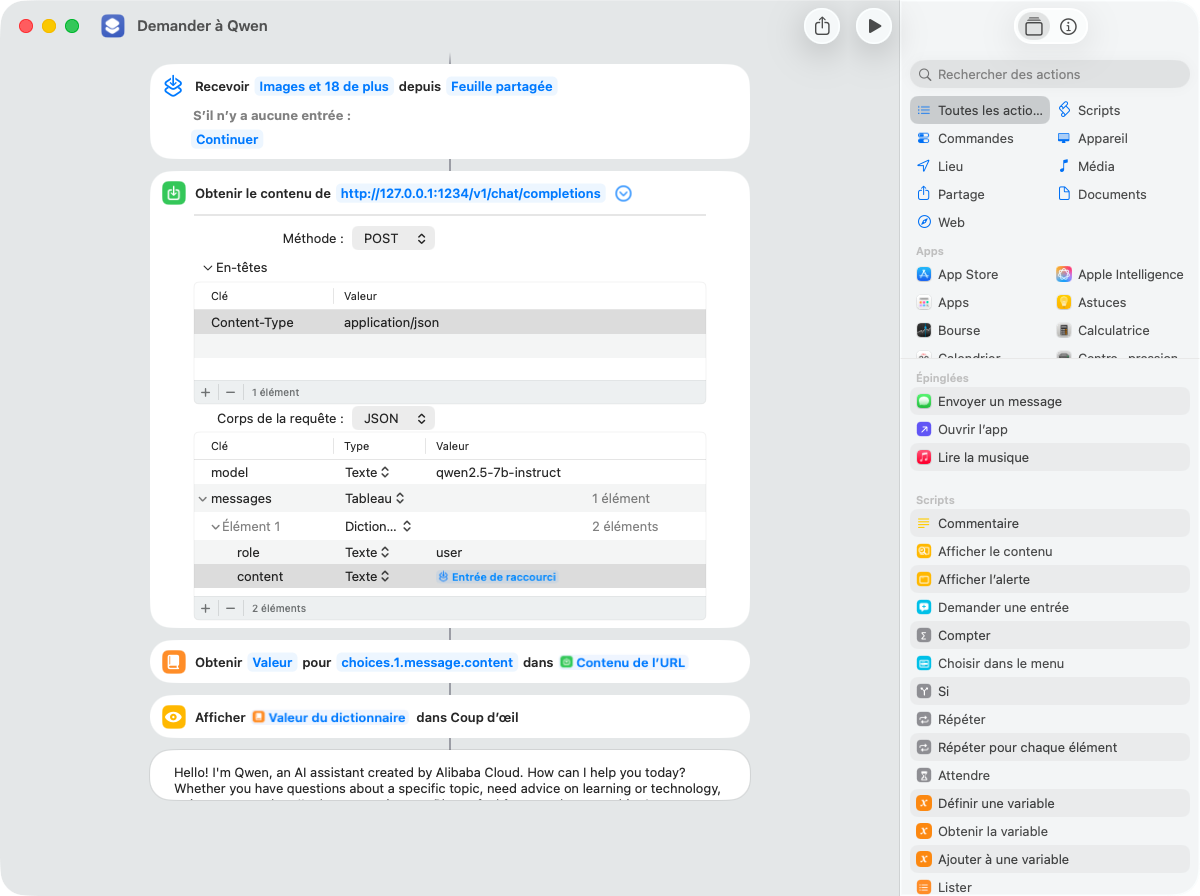
macOS ships with an app called Shortcuts, the one with the two colored squares icon. It chains actions automatically, and among those actions, one knows how to talk to a server, exactly ours. It is called “Get Contents of URL.”
The idea: you build a shortcut that takes a text, sends it to your local model with an instruction, and hands you back the answer. Once built, you launch it whenever you want, from Spotlight or the menu bar: it opens a window, you type your question or paste your text, and the answer appears.
Here is the recipe, in the clear.
- The input. Your shortcut grabs a text, the one you type or paste in the window that opens at launch.
- The request. A “Get Contents of URL” action pointed at your server’s address, followed by
/v1/chat/completions. POST method,Content-Type: application/jsonheader, and a JSON request body containing the model name, your instruction and the text to process. - The output. The server answers in JSON. You extract the useful bit with the “Get Dictionary Value” action, then display it. A trap awaits you there, and it costs everyone a quarter of an hour: in Shortcuts, the path to grab the answer is
choices.1.message.content. Yes,1, not0. The app numbers list items starting at one, when all the JSON in the world counts from zero. Put0, you reap an error; put1, you reap your answer.
A concrete, immediately useful example: a “Clean this up” shortcut. You launch it, paste a clumsy paragraph, your instruction tells the model “rewrite this text in clear, polite English,” and the fixed version appears. The text never left your Mac. No online service saw your draft.
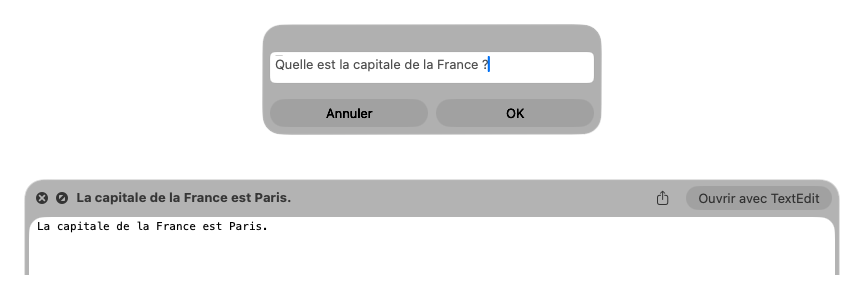
The first build takes a little patience, the time to place the right actions in the right order. After that, you duplicate it and just change the instruction. “Summarize in three points,” “translate to French,” “pull out the dates and amounts.” One shortcut per use, all wired to the same engine sleeping on your machine.
That is the no-code path, and for a lot of people, it is more than enough.
To go further, a few lines of Python
Want to process not one text, but a whole folder? Here, a small script does what no click will do as well. No need to be a developer, just copy and adapt.
The principle is the same as for Shortcuts, only more flexible: your script talks to the local server, in a loop, over as many items as you want. And since the API is OpenAI-compatible, you can use OpenAI’s official Python library by simply giving it your machine’s address instead of the cloud’s.
from openai import OpenAI

# Point the library at YOUR local server, not the cloud
client = OpenAI(base_url="http://localhost:1234/v1", api_key="local")

def ask(instruction, text):
    response = client.chat.completions.create(
        model="local-model",  # put the loaded model's identifier here, shown in the Developer tab
        messages=[
            {"role": "system", "content": instruction},
            {"role": "user", "content": text},
        ],
    )
    return response.choices[0].message.content
Locally, LM Studio ignores the key, any non-empty string does the job, “local” here. For model, put the identifier of the model you loaded, the one shown in the Developer tab.
This handful of lines is the base. Around it, you wrap whatever task you want. Three recipes that pay off big, right away.
Summarize a folder of notes or exported emails. You loop over the files in a folder, pass each to the function with the instruction “summarize in three points,” write the summary next to it. Fifty notes digested in the time of a coffee, and not a line gone anywhere but your RAM.
Sort and classify documents. You ask the model to slap a label on each file, “invoice,” “contract,” “letter,” “ignore,” then your script files each document into the right subfolder based on the answer. The smart sorting you would pay a cloud service for, you run it at home, for free, on documents that have no business being outside.
Rewrite or clean up in batches. A column of customer comments to standardize, a list of titles to rewrite, an export to tidy up. You loop, the model passes over each line, you get back a clean file. The kind of chore that takes an hour by hand and two minutes locally.
What these three recipes have in common: they are repetitive, they are a bit sensitive, and they have no reason to leave your machine. That is local’s natural playground. I have been running my own batches of notes through it for months, and the idea of a draft going off to a third party now feels as weird to me as printing my private diary at the neighbor’s.
What it changes, and what it does not
Your local model does not have the raw power of the best remote model. On a rewrite, a sort, a summary, the difference is invisible. On a twisted ten-step reasoning, it still exists, we talked about it while setting up your machine. Local is not there to win every contest. It is there to knock down, in silence and without a bill, the mountain of repetitive work that makes up the bulk of your volume.
And the cardinal benefit is not measured in performance points. It is measured in what does not happen.
No request sent to a foreign server. No terms of service changing one morning. No bill climbing with your usage. No automation SaaS keeping a copy of what you route through it. Your text enters your machine, comes back out transformed, and crossed no one. It is the same deal as for your model in chat, extended to everything you automate.
One limit remains, and it needs naming. What you just wired is bespoke, your scripts, your shortcuts, yours to maintain. The day you want to connect your AI to whole tools, your calendar, your code repo, your file system, in a standardized way, there is another road, more powerful and deeper. It has a name, MCP, and it opens a door you had better know how to lock before using it. That is the next step up, and it deserves its own article.
Your local model exposes an API, at home, compatible with the market’s tools. You turn it on by ticking a box in LM Studio. You wire it without code using Shortcuts, or with a few lines of Python to handle whole batches. And you finally automate the repetitive work you were doing by hand, without a single byte leaving your machine.
The model you installed last week was only half asleep. You just put it to work. Pick one chore, a single one, the one that bugs you most, and make it do that tonight. The rest will follow on its own.
Read next: Your AI can be switched off by the US, build your own, the why behind this whole story.
Sources
The tool and its local server
- LM Studio, local server documentation, the app ships with a server that runs on your machine.
- LM Studio, OpenAI compatibility, the
/v1/*endpoints and the default port1234.
The no-code path
- Apple, make an API request in Shortcuts, the “Get Contents of URL” action in POST JSON.
- Apple, parse JSON data in Shortcuts, to extract the model’s answer.
The scripted path
- OpenAI Python library, reusable against a local server via
base_url.
Technical terms? Check the glossary.