Your sovereign SIEM, learn to read it properly then make it act
Wazuh is installed and you don't know what to do with it. Three first jobs in the right order, without drowning in alerts.

Series · episode 1 of 5Make Your SIEM Talk Contents
- 1 Your sovereign SIEM, learn to read it properly then make it actyou are here
- 2 Wazuh, write the rule that catches what you're really after
- 3 Santa in Wazuh, from noise to an alert that speaks
- 4–5 Coming up
You followed the SIEM series. You set up Wazuh all-in-one on your hardened VPS, then deployed the agents. Your dashboard lights up, it lists your machines, it shows numbers, curves and alerts climbing. And there you stand, frozen in front of it, with a dumb question nobody asks in the install tutorials, what do you actually do with all this?
Because let’s be honest, the Wazuh dashboard, just like that, out of the blue, well… it looks a bit like a Boeing cockpit. One of our readers kindly pointed that out, and it’s the origin of this series.
I do say series, because after thinking about it a while, I figured a single normal-length article wouldn’t cut it.
The wrong answer to that first question, the one everything pushes you toward, is to switch it all on at once so you “don’t miss anything”. A Christmas tree lit up full blast is pretty, but with so much to watch you no longer know where to look.
Wazuh isn’t an antivirus. It blocks nothing until you enable rootcheck and active response, it cleans nothing, as it stands it doesn’t protect you. It’s a collector, a rules engine and a store. It makes visible what happens on your machines. All its value shows up the day you ask it two or three precise questions, not the day you let it watch everything and try to follow the whole match at once.
Today, we switch on your three first useful jobs, in order, with a single guiding thread, don’t drown yourself in alerts. This tutorial targets the 4.x branch of Wazuh, the one used across the whole SIEM series, not the new version 5.
What you need
Nothing to install today, everything’s already in place. We configure and we read. Three prerequisites, all inherited from the series.
- Your Wazuh manager up and running, the one from episode 2 of the SIEM series.
- At least one agent in
Activestate, the one from episode 3. - Your access to the dashboard, locked to Tailnet, the way we left it.
The click, Wazuh shows you, it doesn’t defend you
Picture a surveillance camera with no guard behind the screen. It films everything, flawlessly. It stops no one. Wazuh is that, the camera. The guard is you.
And a guard staring at forty screens at once no longer sees anything. That’s the trap that kills SMB SIEMs, not in six months, in two weeks.
Classic, you switch on every module on day one, each pours out its hundreds, even thousands, of events, you tune nothing, the signal gets lost in the din, and after two weeks you don’t even look at the dashboard anymore.
There, your SIEM is dead. Not crashed, not broken, just ignored. Which amounts to the same thing.
The golden rule for everything that follows, write it on a sticky note.
Don’t enable any rule you wouldn’t know what to do with when it fires. If an alert drops and your only possible reaction is a shrug, that alert should never have existed.
Three jobs, in this precise order. Each one answers a question, and only one.
What it changes, what it doesn’t
What it changes. By the end, you no longer stare at an indistinct wall of alerts. You have three views that each hand you a clear answer, and you know which one to open and why.
What it doesn’t change. You observe, you still don’t block. Deciding which applications are allowed to run, cutting a hostile connection, that comes later, it’s another floor. Here, we learn to look before we learn to act.
First job, configuration assessment, your only list with an end
Start with SCA, for Security Configuration Assessment. And start with it for a very concrete reason, it’s the only Wazuh module that produces a finite list.
All the others spit out an endless stream, events that keep dropping as long as your machines run. SCA, though, takes a machine, compares it against a reference hardening policy, of the CIS benchmark kind, and hands you a bounded result, a score and a list of failed checks. A hundred and eighty checks, some not applicable to your machine, and of the rest you pass roughly half straight away. The other half gives you a bounded list of failures, which you work through in an hour, without tuning anything, on day one.
In the dashboard, open the configuration assessment view for one of your agents, the Configuration Assessment tab. There you find a global score and the detail of each control, each with its verdict, passed or failed, and above all the matching remediation, the expected value and how to reach it.
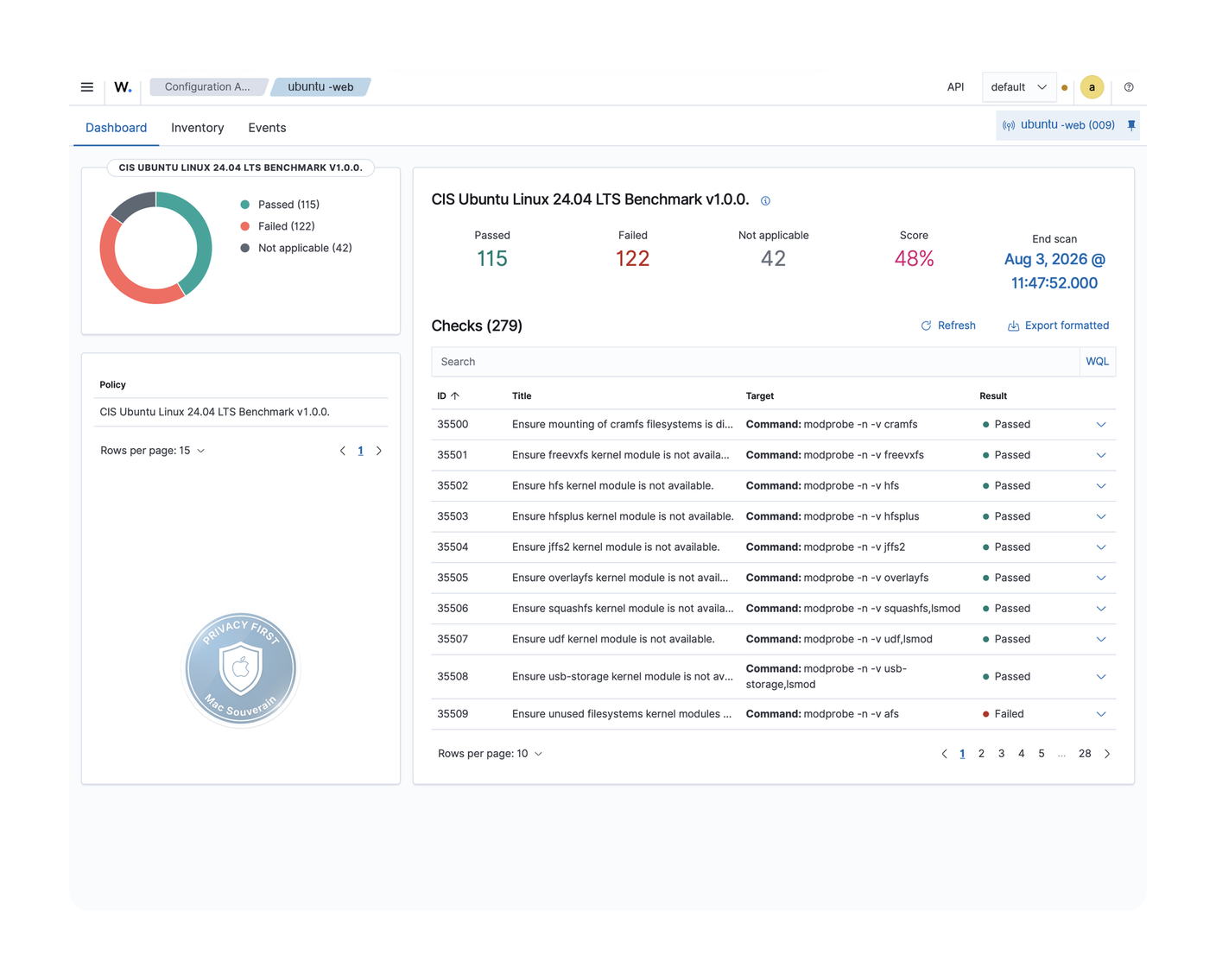
Your only task, here it is.
- Sort by failed controls.
- Spot the ones that truly matter to you, a badly configured SSH service, an account with no password expiry, a too-broad permission on a system directory.
- Fix, rerun the scan, watch your score climb.
It’s rewarding, and it’s no accident I have you do it first. SCA doesn’t wake you up at night, it doesn’t flood you.
It’s a checklist you open, work through, and close. The exact opposite of a source of anxiety. The right place to build confidence before facing the modules that, unlike this one, talk non-stop.
Second job, file monitoring, watch little to hear something
FIM, for File Integrity Monitoring. You met it in episode 3, when we deployed it through groups. Today it’s not the mechanism that matters, it’s the discipline.
The natural, catastrophic reflex is to want to watch broad. All of /etc, all of /usr, why not the whole disk while you’re at it. Except every package update rewrites dozens of perfectly legitimate files, and FIM alerts you every single time. You watch everything, so you hear a permanent din, so you no longer hear anything.
Do the opposite. Pick three or four directories that truly matter, your client data, your accounting, a business share, the critical configs of an exposed service. The ones where a change you didn’t make is, in itself, news that deserves your attention.
The configuration, you push it cleanly through the group, in the manager’s shared file, exactly like in episode 3.
<syscheck>
  <directories check_all="yes" realtime="yes">/srv/donnees-clients</directories>
</syscheck>
The check_all="yes" records everything that characterises a file, hashes, size, owner, permissions, dates, the slightest alteration is seen. The realtime="yes" asks for the alert at the instant of the change.
One note of honesty already laid down in the series, that real time exists only on Linux and Windows. On macOS, FIM falls back to scheduled scans, a change between two passes is only seen at the next pass.
The principle to keep holds in one sentence. Every watched directory is a promise to react. Only watch what you’d actually act on. The rest is noise you inflict on yourself.
Read: Deploy Wazuh everywhere, your SIEM finally sees your network for the full mechanics of groups and per-agent FIM.
Third job, vulnerability detection, the inventory that ages on its own
Only third, vulnerability detection, the Vulnerability Detection tab of the dashboard, which recent versions no longer place next to the first two but in the threat hunting section. The principle is elegant, the agent builds the inventory of packages installed on each machine, and the manager cross-checks that inventory against a feed of known flaws, the famous CVEs, for Common Vulnerabilities and Exposures.
The result is a list, per machine, of the software for which a vulnerable version is installed on your side. Powerful. And for that very reason, to handle last of the three, because it’s the module that pours out the most. On a real fleet, you’ll see hundreds of entries drop, most of them low or medium severity.
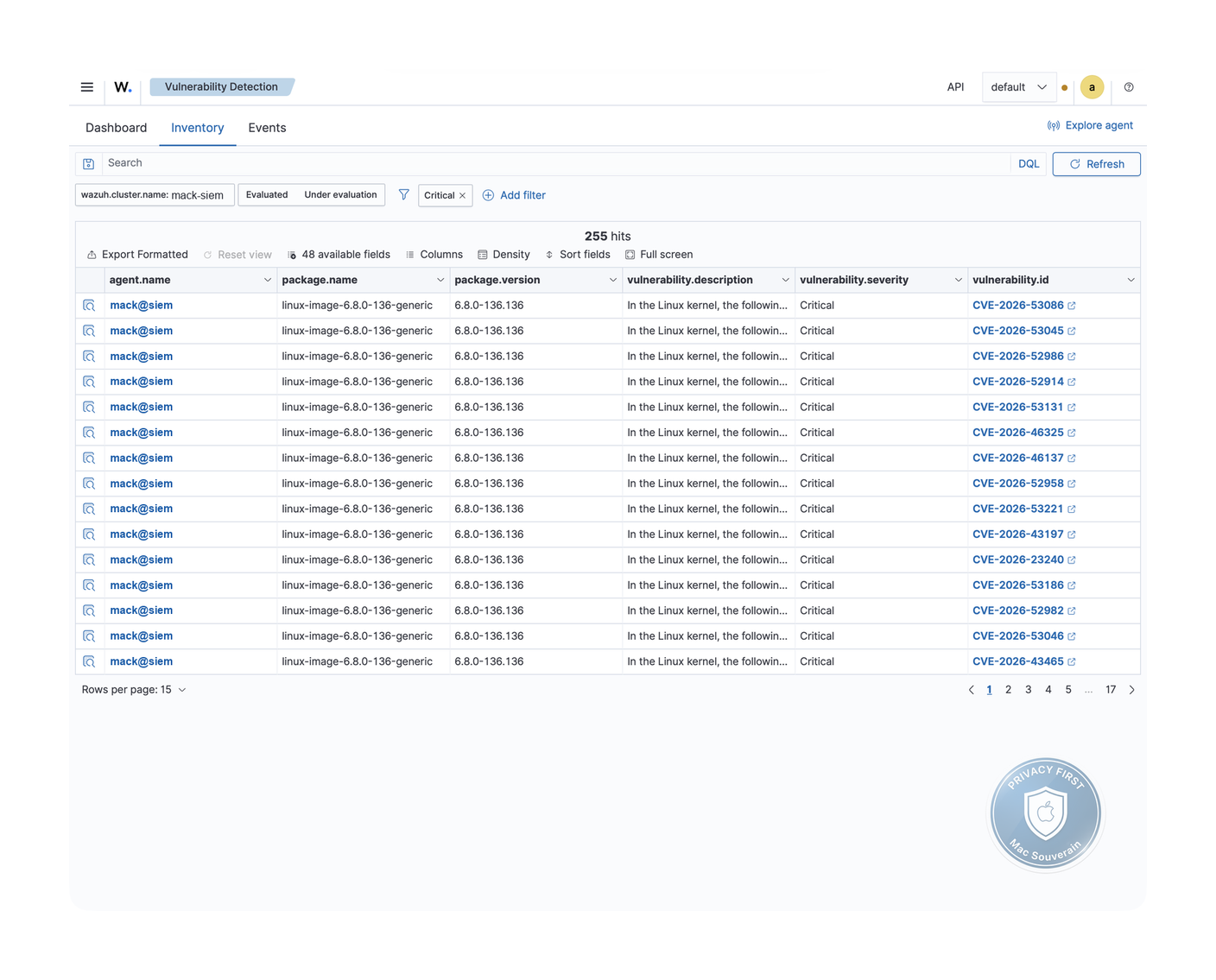
If you land on that without having tamed the first two jobs, you drown. So we sort, we don’t read everything.
- Filter by severity, focus on critical and high.
- Cross-check against real exposure, a flaw on a service reachable from the Tailnet doesn’t carry the same weight as a flaw on a package that’s never launched, or reachable from the open net.
- Handle it, patch or update, then let the next inventory confirm the line is gone.
The trap here is sneaky. A list of vulnerabilities you never sort is worse than no list at all, because it settles you into a false sense of security, you think you know, you do nothing. An inventory is only worth the triage that follows it, and the fixes it drives.
What we very much don’t switch on yet
Wazuh ships other modules, and two of them are winking at you. Resist.
Rootcheck, the detection of rootkits and system anomalies, already runs in the background by default. Don’t dwell on it for all that, as long as the three first jobs aren’t calm and read, that’s not where your priority is right now.
And above all, above all, active response. This module runs scripts in reaction to an alert, block an address, kill a process, cut a session. On paper, it’s the dream, the SIEM that defends itself. In practice, wired in before you’ve tuned your rules, it’s the surest way to lock yourself out of your own infrastructure on a false positive. There is a safeguard, an allow-list of addresses that are never blocked where you put your admin IP, but that’s exactly the kind of setting you only get right once you’ve mastered the rest.
Active response comes last, once you know your rules by heart and you trust them. Not before.
You see the thread, it hasn’t changed since the first paragraph. We switch on in order from the calmest to the noisiest, and we only automate a reaction the day we know exactly what it’s going to do.
The real limits
Wazuh is an excellent tool, sovereign, free, with no agent cap. It also has precise blind spots you need to know so you don’t get caught.
On Mac, file monitoring isn’t real time. We saw it above, macOS falls back to scheduled scans. Concretely, on a mostly-Apple fleet, never count on a second-by-second alert on the FIM side, think in scan windows and put your real-time safeguards on your Linux and Windows endpoints.
SCA judges your machine against generic policies. Some controls don’t fit your actual configuration and come back failed even though your choice is deliberate and justified. These false positives get sorted by hand, once, then set aside. That’s human work, not a defect to fix in the tool.
Vulnerability detection reasons at the package-and-version level. It can flag a CVE your distribution has already fixed through a backported patch without changing the displayed version number. Result, an alert for a hole already plugged.
Systematically cross-check against your distribution’s security bulletins before panicking over a critical line.
None of these limits is a deal-breaker. All of them are manageable, provided you have them in mind beforehand, not after a sleepless night.
If it’s not working
Problem, the configuration assessment stays empty or at zero
Likely cause, the module isn’t active on the agent, or no policy is loaded for that system.
Fix, check that SCA is enabled in the agent’s configuration and that a policy matches its operating system. Rerun a scan and give it time to report back.
Problem, FIM doesn’t alert you in real time on a Mac
Likely cause, none. That’s the expected behaviour, real time doesn’t exist on macOS.
Fix, nothing to repair. On Mac, you think in periodic scans. If you want real time, it’s on your Linux and Windows endpoints that it plays out.
Problem, vulnerability detection shows nothing
Likely cause, the module was just enabled and its flaw feed hasn’t been downloaded yet, or the package inventory hasn’t reported back yet.
Fix, wait out the first feed download and the first inventory report. If after a reasonable delay it’s still empty, check that the module is properly enabled on the manager side.
For the impatient
What this article does. Once Wazuh is installed and the agents deployed, it tells you what to do first, without drowning you. Three jobs in order, from the calmest to the noisiest, and two modules we leave off on purpose.
Concretely, the steps.
- Open an agent’s configuration assessment, sort the failed controls, fix the few that matter, rerun the scan.
- Restrict file monitoring to three or four genuinely sensitive directories, through the group,
<syscheck>block withcheck_all="yes"andrealtime="yes"(real time on Linux and Windows only, not macOS). - Enable vulnerability detection, filter by severity, handle critical and high, ignore the rest.
- Leave rootcheck and above all active response off as long as the rest isn’t calm and under control.
- Golden rule, don’t enable any rule you wouldn’t know what to do with when it fires.
In summary
Your SIEM was on and mute to you, it becomes readable. You started from a dashboard that crackled without speaking to you, you leave with three views that each answer a clear question.
Configuration assessment gave you a finite list to work through in an hour. File monitoring, restricted to the essentials, only alerts you on what matters. Vulnerability detection lays out the inventory of what must be patched, provided you sort it. And two powerful modules stay at rest, because we only wire them in once the rest is tamed.
The tech wasn’t the hard part. The hard part is restraint. Pick few questions, but really answer them.
And next, teach your SIEM to act
You’ve just learned to make Wazuh talk, to ask it few questions and to really listen to them. That’s half the road. The other half is turning it from spectator into actor, without it turning against you.
This article leads the way. The rest is written one notch at a time, in the same spirit, from the calmest to the most engaging.
- Episode 2, writing your own rules. So it wakes you on what matters to you and stays quiet on the rest.
- Episode 3, wiring Santa into Wazuh. So your SIEM sees not only what runs on your execution-controlled Macs, but also what got blocked.
- Episode 4, active response. The module we left off on purpose today, the one that acts on its own, blocks an address, cuts a session, and that we only wire in once we truly trust it.
- Episode 5, SCA-to-NIS2 compliance. Turning the configuration audit into a compliance report you can hand an auditor.
And for the fine tuning, calibrating thresholds, setting notifications so you’re only woken when it truly matters, the series has its dedicated chapter.
Read: Alerting and total cost, the reckoning of your sovereign SIEM
No SIEM up and running yet? Read the foundation series first, Build Your Sovereign SIEM, from the hardened VPS to alerts that actually ring. This article picks up where it leaves off.
Technical terms? Check the glossary.